


 Português
 English
In our daily work, we use documents to record various important information—capturing countless hours of brainstorming and creative ideas, and preserving the traces of team collaboration.
From basic text extraction to advanced data processing and team collaboration optimization, DingTalk Docs has rolled out a series of new features, each designed to simplify workflows, reduce errors, and boost productivity.
But how can these features make the document-creation experience with DingTalk Docs both faster and more accurate?
Let’s find out~
Four Tips to Boost Efficiency: Create Documents Quickly and Accurately
In DingTalk Docs, four features have become favorites among professionals: Extract Text from Image, Smart Proofreading, Smart Summary, and Full-Text Translation. Though small, these features are incredibly convenient and are now frequently used by most users.
1. Extract Text from Image: Say Goodbye to Manual Typing
When organizing meeting notes, scanning handwritten notes, or working with screenshots, manually entering text from images is time-consuming, labor-intensive, and prone to errors.
DingTalk Docs’ Extract Text from Image feature quickly converts text in images into editable text, saving significant time—and has become an indispensable tool for many workers!
2. Smart Proofreading: Let AI Help You Proofread Text
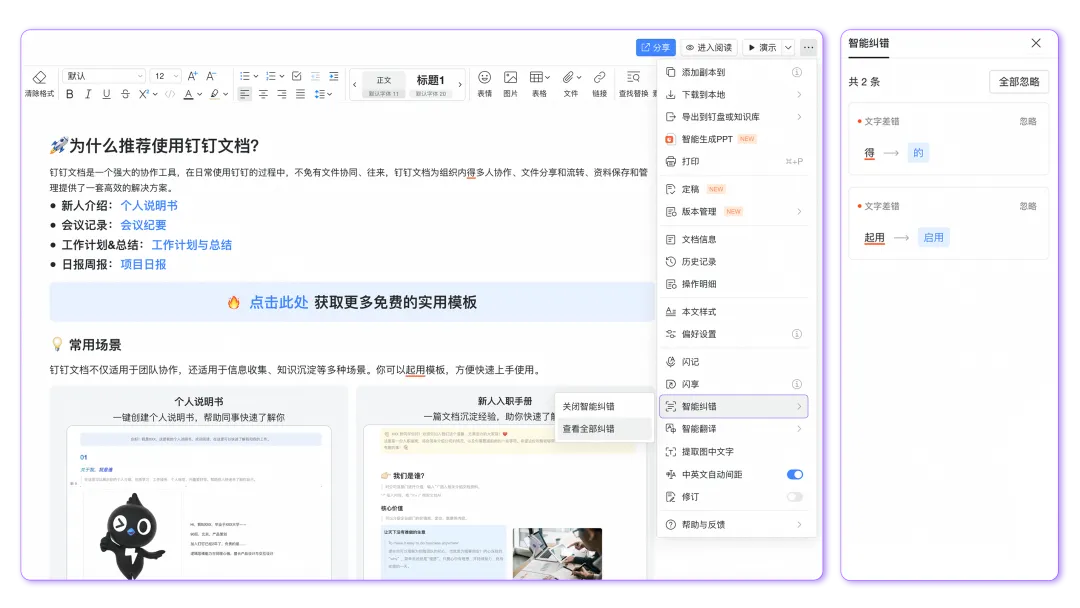
When writing documents, it’s easy to make typos, misuse “de,” “de,” and “di,” or accidentally copy too much or too little text. Manually proofreading spelling and grammar errors in documents is time-consuming and exhausting.
Turn on DingTalk Docs’ “Smart Proofreading” feature to let AI provide real-time proofreading, enhancing the professionalism of your text while saving you considerable time on proofreading.
Tips: Requires DingTalk Office Suite Basic or higher to use.
3. View Summary: Key Points at a Glance
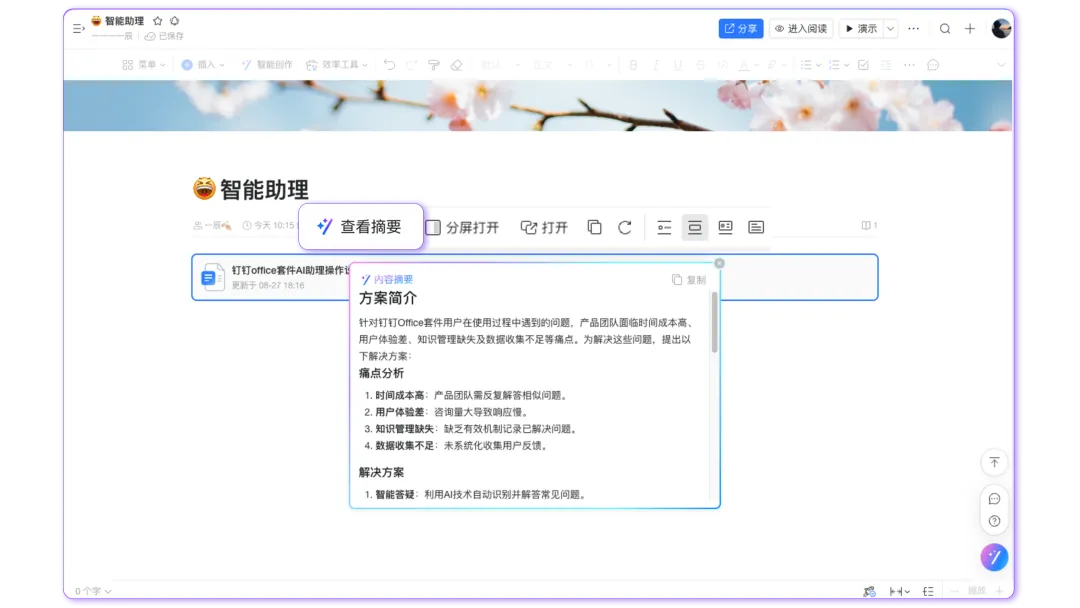
When reading research reports, meeting minutes, or other lengthy materials inserted into a document, it can be hard to quickly grasp the key information.
DingTalk Docs’ “View Summary” feature quickly summarizes inserted documents and files, automatically generating a smart summary that helps you rapidly extract the core content.
4. Smart Translation: Enable Barrier-Free Global Communication
When participating in cross-border collaboration projects, communicating with overseas clients, or creating multilingual documents, the biggest concern is often the lack of precision in translation tools, leading to communication challenges across languages.
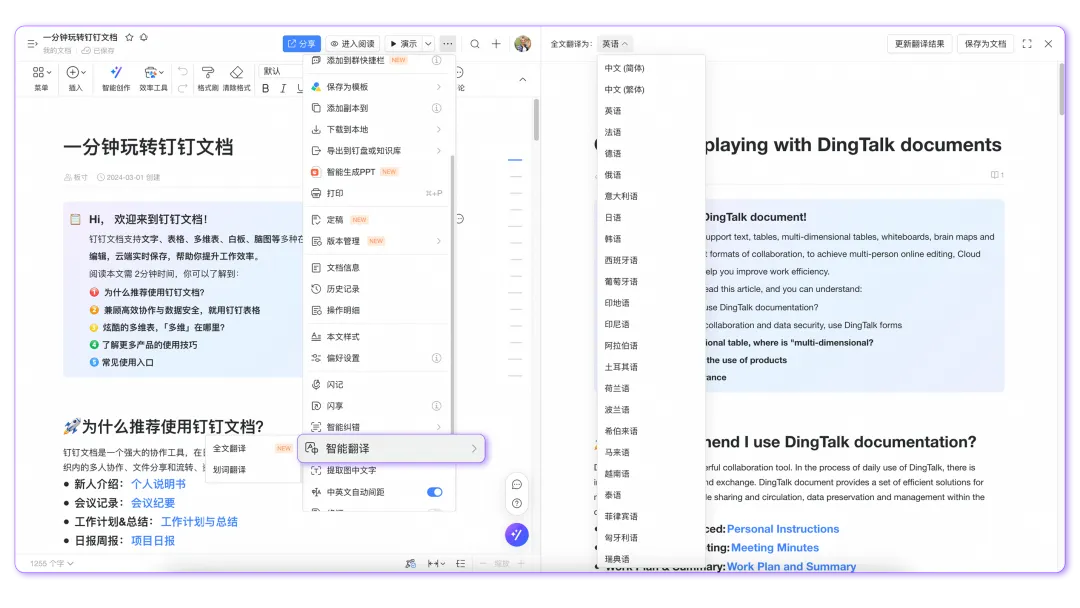
DingTalk Docs supports “Smart Translation,” offering both one-click “Full-Text Translation” and partial “Word Selection Translation.” It supports translation between 29 languages, providing real-time language conversion that simplifies workflows, boosts efficiency, increases translation accuracy, and facilitates international collaboration.
Tips: Requires DingTalk Office Suite Basic or higher to use.
Two Advanced Tips to Skyrocket Document Editing Efficiency
1. Work with Data Inside Documents: Insert Spreadsheets for Clarity and Efficiency
When writing market analysis reports or any content involving data analysis, you inevitably need to present data. Whether you insert online tables or table attachments, they’re not always intuitive, and you have to switch back and forth between documents frequently.
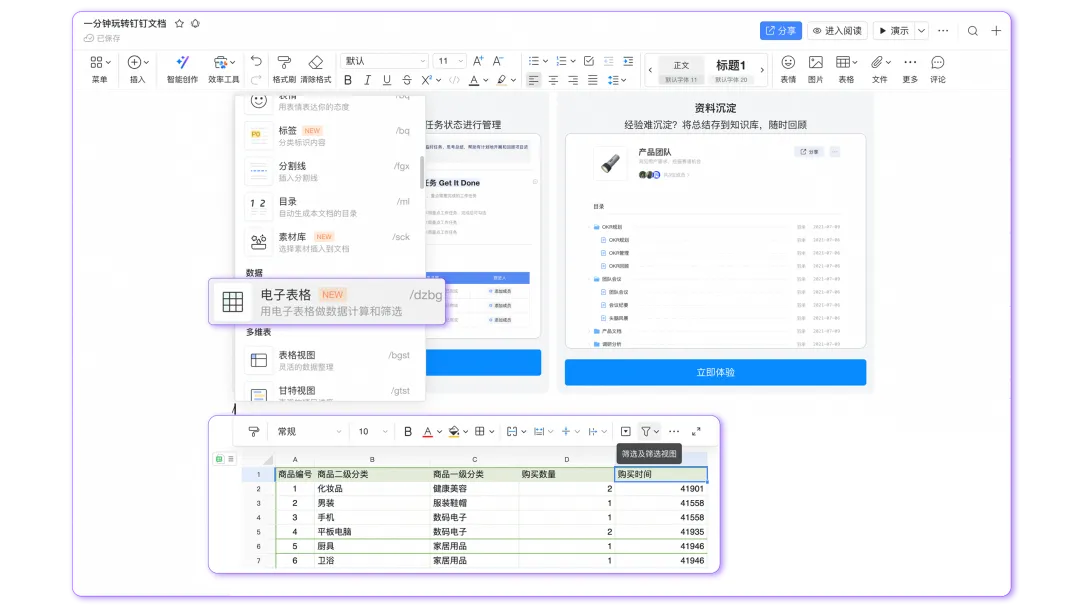
DingTalk Docs now supports “Insert Spreadsheet.”
Unlike a regular “Insert Table,” spreadsheets allow you to perform calculations, lookups, filtering, and sorting on data, and even customize the table’s style. You can work with data directly within your document while editing, simplifying your workflow and making data presentation clearer and more visual.
2. Use Sync Blocks: Update Once, Update Everywhere
When maintaining multiple related documents—such as annual goals, policy manuals, or operation guides—we often need to repeatedly update the same content across several documents or different sections of the same document. This is not only error-prone but also highly time-consuming.
The “Sync Block” feature in DingTalk Docs effectively solves the problem of synchronizing reusable information.
After enabling “Sync Block,” you only need to change the content in one place, and the corresponding content in other locations will update automatically in real time, eliminating redundant work and greatly boosting editing efficiency.
For example:
When you need to display and update the same “Annual OKR” in your own document and in your team’s document, you can type “/” in the document to create a “Sync Block,” then long-press the T icon in the left-side toolbar and drag the content into the “Sync Block.”
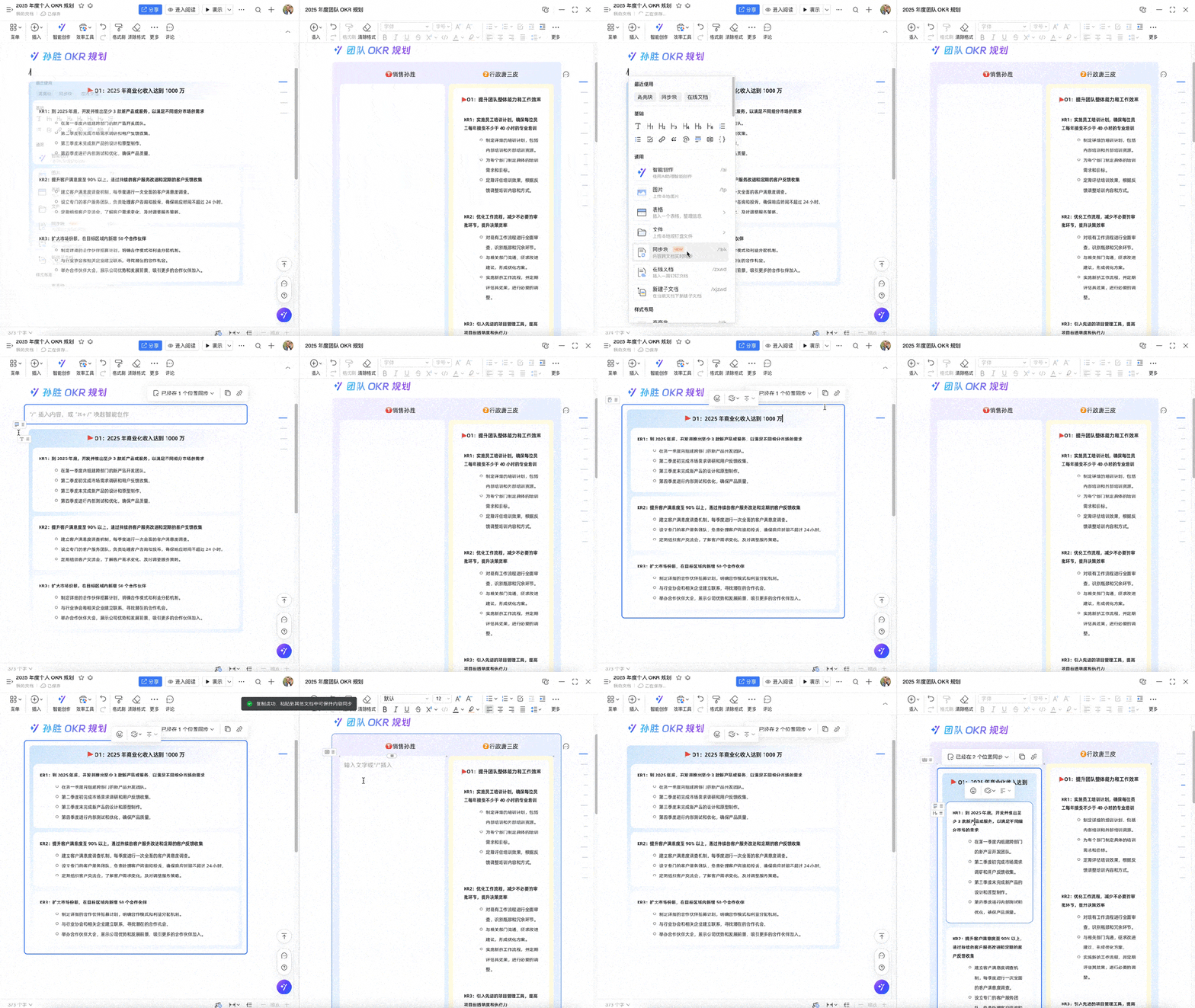
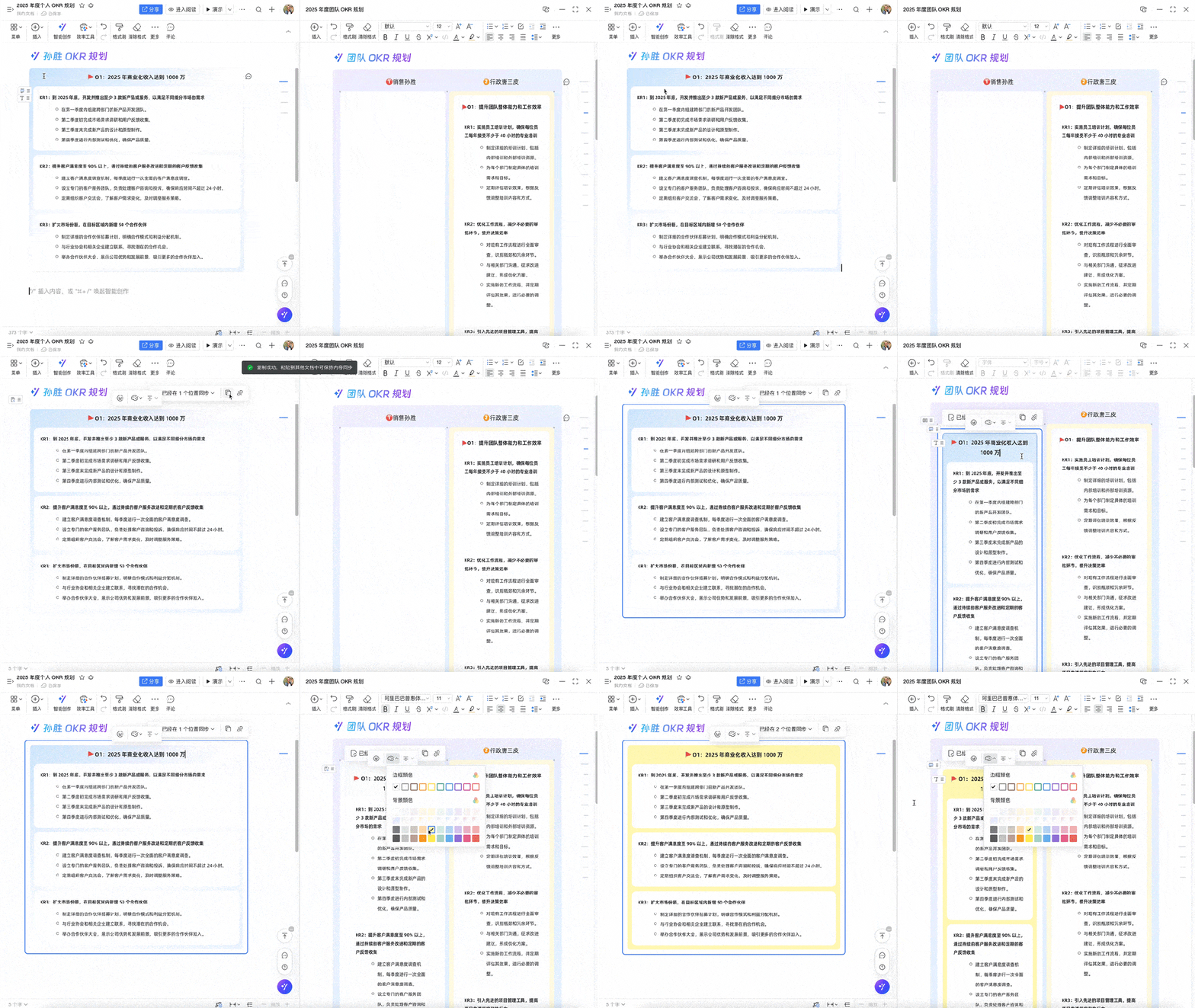
You can also hover over the floating T toolbar in the upper-left corner of the “OKR” paragraph and click “Convert to Sync Block.” Copy the Sync Block link in the upper-right corner and paste it into multiple documents—the content will sync in real time.
You can also unlink the Sync Block at any time. Just click “Unlink” in the upper-right corner to choose whether to unlink the current document or all linked documents.
Tips: Requires DingTalk Office Suite Basic or higher to use.
Six Team Collaboration Tips for Smooth Document Review
1. Direct Link to Group Chats: Strengthen Collaborative Efficiency
When managing project progress, we often share document files in group chats to facilitate discussions about details or reviews.
But with too many group chats, it can be hard to keep track of which chat contains the right document, and sharing the wrong chat is a common mistake.
Moreover, communication and collaboration among team members often require switching between documents and chat pages, which can slow down productivity.
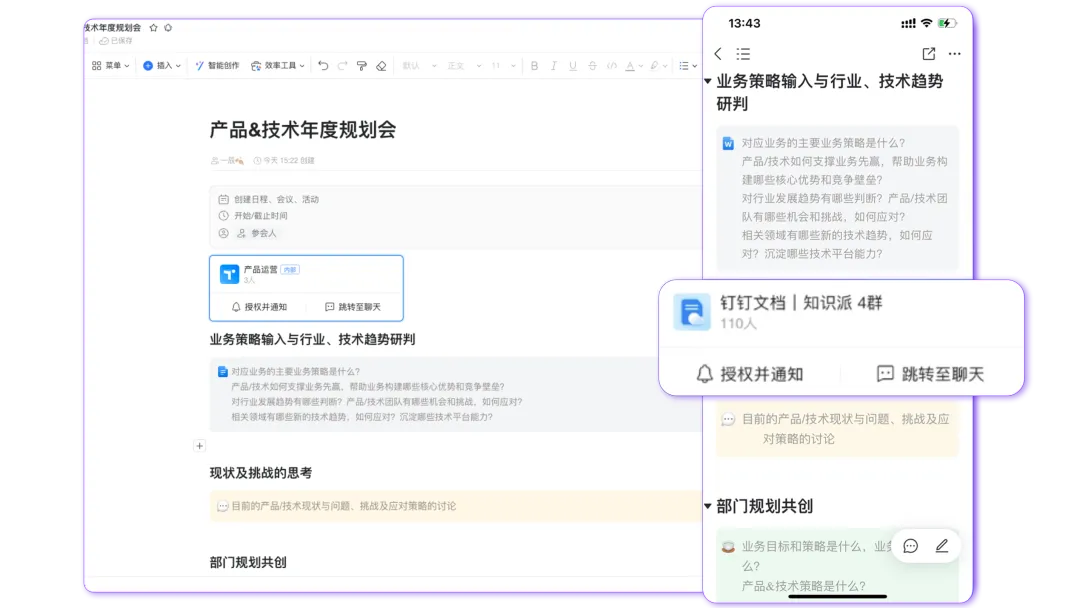
Now, DingTalk Docs can directly jump to group chats!
Simply type “/” in the document, click “Group Chat,” and select the group chat you want to insert. You can then directly jump to the group chat from within DingTalk Docs or synchronize document information to the group chat.
This strengthens the connection between documents and group chats, allowing project documents, guideline documents, and product promotional documents to be added to groups with a single click, improving the smoothness of team collaboration.
2. Editable Comments: Improve Communication Accuracy
In collaborative offices or online reviews, whenever teams discuss ideas, review copy, or address changing project requirements, everyone is accustomed to adding “comments” directly in documents.
However, if you send the wrong comment, you have to delete it and resend it—a tedious process that can lead to information delays.
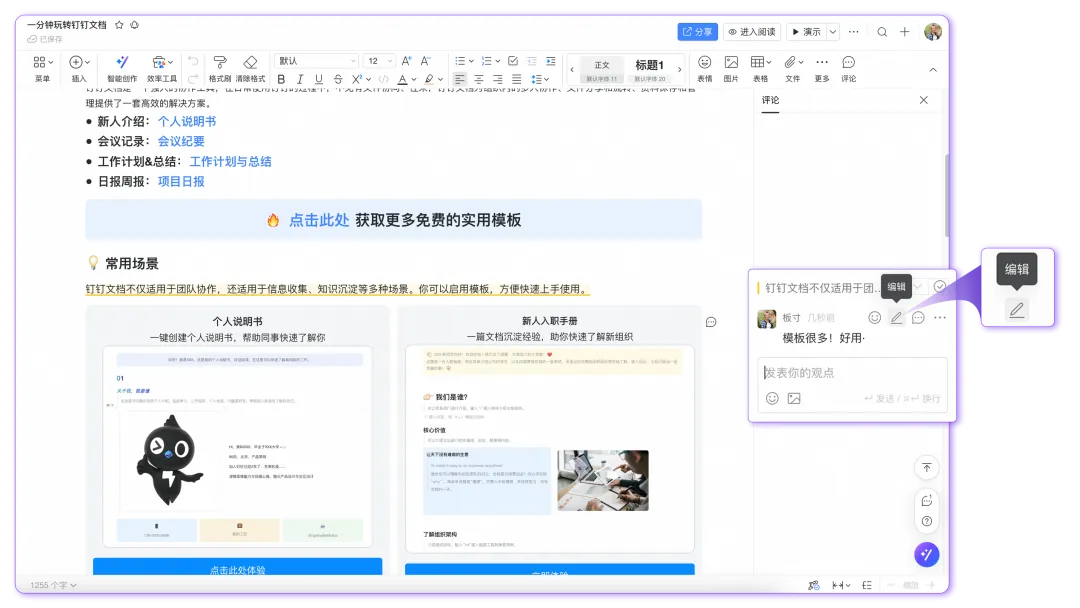
Now, DingTalk Docs’ comment feature supports editing and modifying comments.
You can edit published comments to correct mistakes or add additional information in real time, making communication smoother and significantly boosting collaboration efficiency.
3. Revision Mode: Make Document Editing Collaborations Transparent
When reviewing documents, it can be difficult to track each person’s specific changes when multiple people collaborate on editing a document.
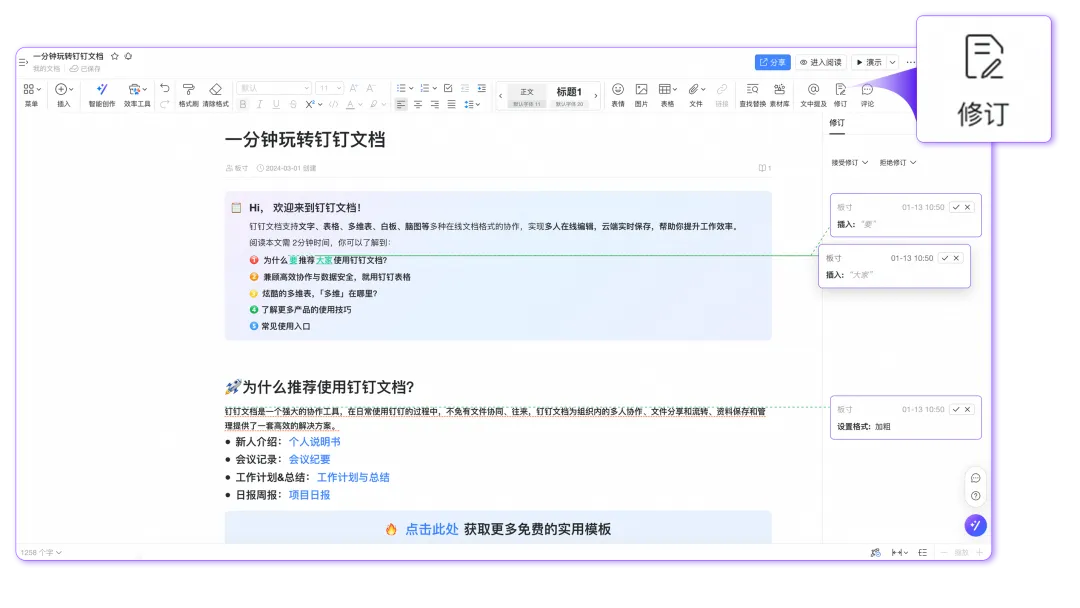
DingTalk Docs supports “Revision Mode.” Once Revision Mode is enabled, all editing suggestions are displayed in card format, marking additions, deletions, and formatting changes.
Everyone can see the changes made by their colleagues, making document reviews more transparent.
Tips: Requires DingTalk Office Suite Basic or higher to use.
4. Version Management: Track Every Change in Collaboration
During document reviews, frequent edits and comparisons between versions can easily lead to version confusion and difficulties in tracking changes.
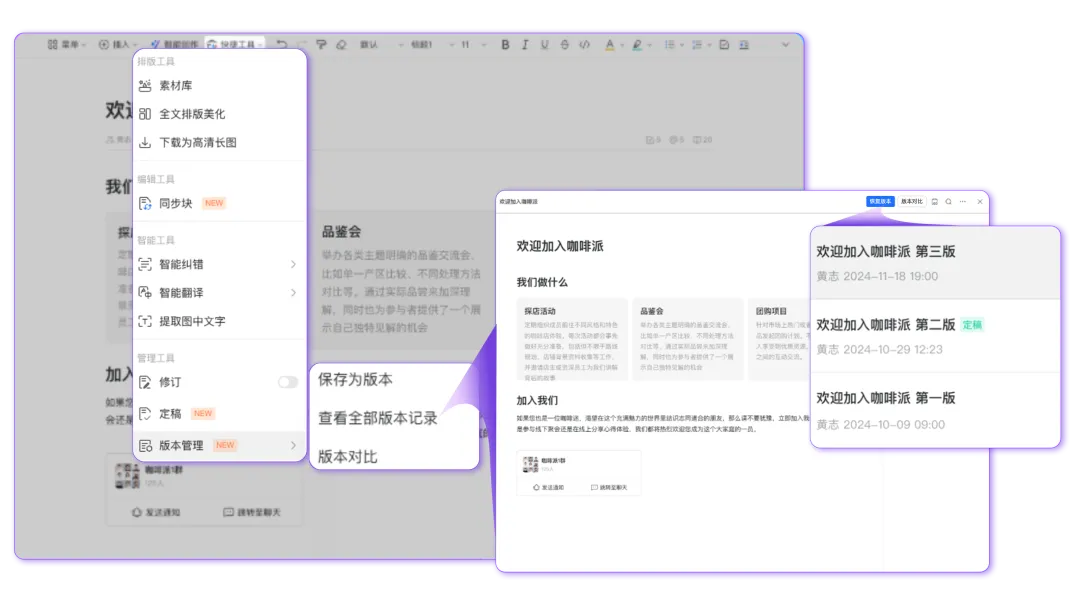
Version Management allows you to save multiple versions and share or access them individually, ensuring that every version of a change is clearly recorded. No matter how many versions there are, you can easily trace back to any of them.
Tips: Requires DingTalk Office Suite Basic or higher to use.
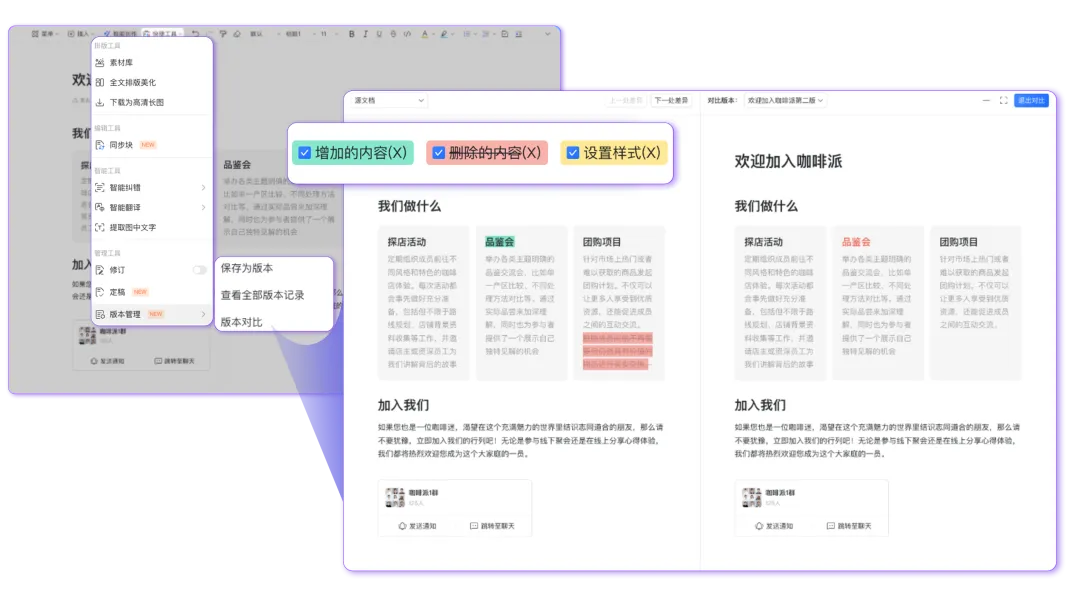
5. Version Comparison: Color Highlighting + Split-Screen View for Collaboration
After frequent edits and updates to a document, it can be hard to visually identify specific changes when comparing different versions.
DingTalk Docs supports color highlighting and split-screen view features to track every specific change, ensuring communication is accurate and error-free.
Tips: Requires DingTalk Office Suite Basic or higher to use.
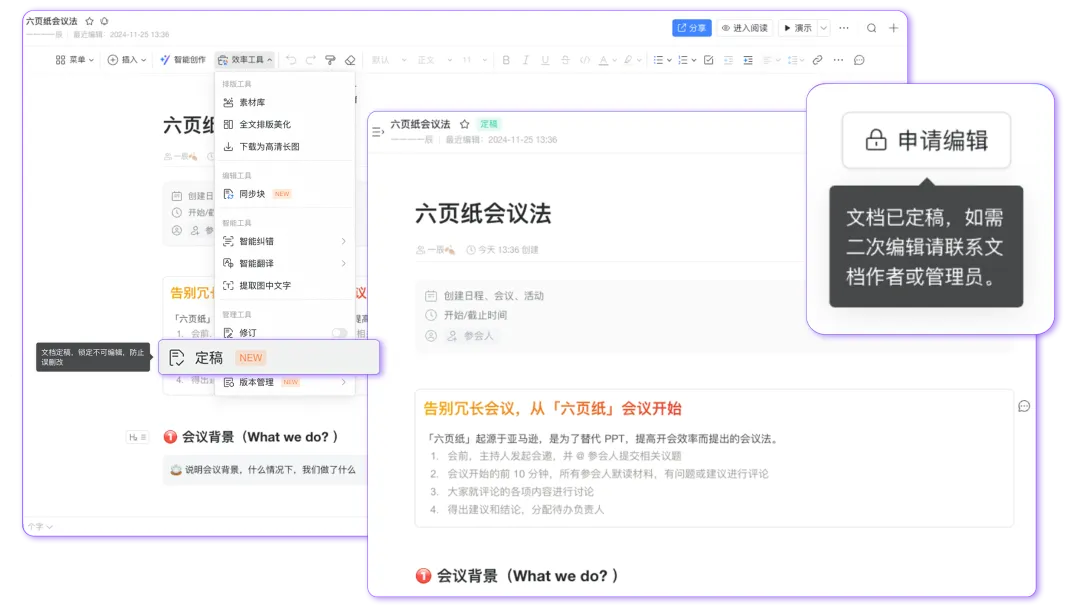
6. Finalize Content: Prevent Unintended Edits in Collaboration
When sharing a document that has already been reviewed, colleagues with editing permissions sometimes accidentally make changes, leading to incorrect or lost data.
This is especially problematic for critical documents—such as legal contracts, promotional plans, or product requirement documents—that require strict version control, as accidental edits can cause significant losses.
DingTalk Docs now supports “Finalize Content.” Once a document is finalized, it is automatically locked to prevent unauthorized edits, ensuring content remains accurate and consistent. If further updates are needed, approval must be requested from document administrators, ensuring all changes are traceable.
Tips: Requires DingTalk Office Suite Basic or higher to use.
DingTalk Docs’ new features address many common pain points at work, helping you complete tasks more efficiently and conveniently in your daily work. Some of the above features require DingTalk Office Suite Basic or higher to use.
Give it a try~
DomTech is DingTalk’s officially designated service provider in Macau, specializing in providing DingTalk services to a wide range of customers. If you’d like to learn more about DingTalk platform applications, feel free to contact our online customer service, or call +852 95970612 or email [email protected]. We have an excellent development and operations team with extensive market service experience, ready to provide you with professional DingTalk solutions and services!