



 Português
 English
Have you ever encountered scenarios like these:
You want to send images in a work group chat, but you’re worried about message flooding.
You want to highlight an important message, but you’re not sure how to guide others to check it out.
You accidentally type a typo and feel stuck having to recall the message and resend it in a large group chat.
Don’t worry—DingTalk has prepared three communication tools for you. These tools can significantly reduce the psychological pressure caused by message flooding, make finding messages easier, and cleverly resolve the embarrassment of typos, helping you achieve efficient communication.
Photo Album
Supports aggregating up to 24 images into a single message, reducing the mental burden of sending multiple images and keeping communication smooth.
As the year-end approaches, after the company hosts team-building events or other activities, a flood of great photos often emerges. If you send all these photos directly to a DingTalk chat, it can easily cause message flooding and disturb others, creating sudden psychological pressure for the sender: You don’t dare send everything, but you can’t avoid sending any photos either.
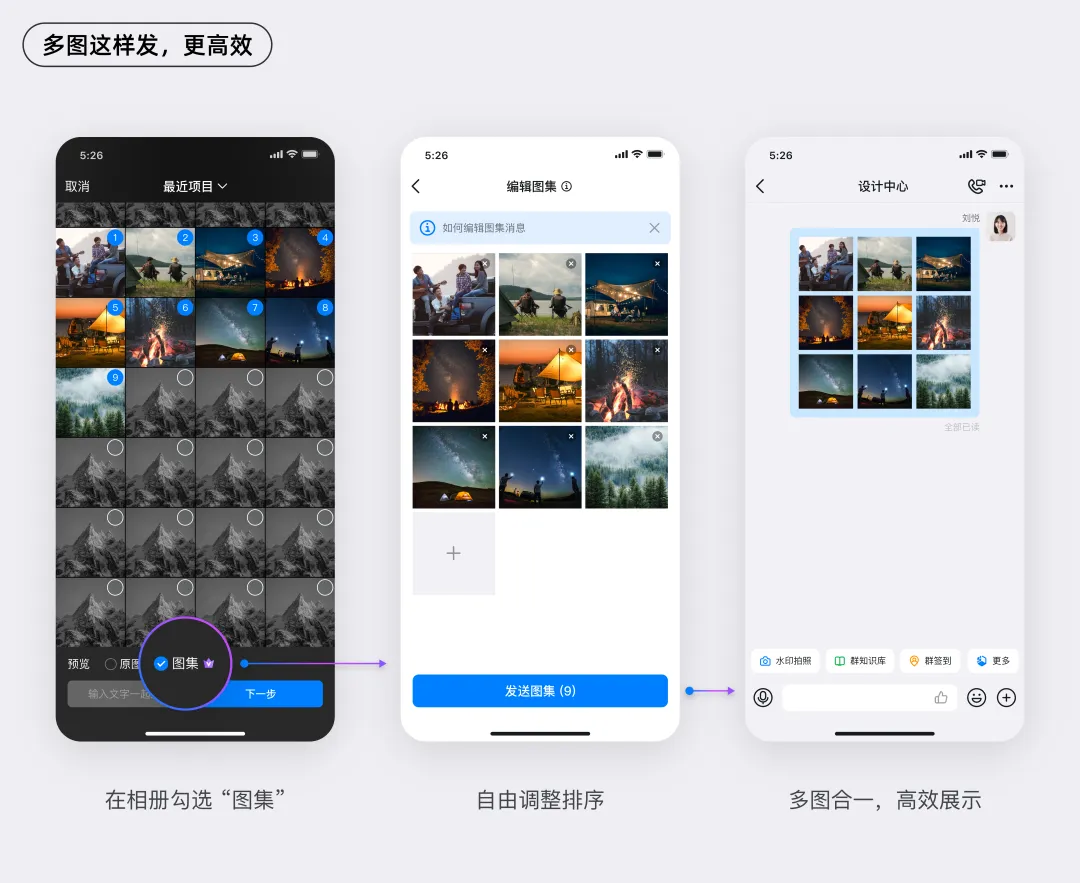
The “Merge into Photo Album” feature not only greatly improves the efficiency of sending and viewing photos, but also frees the sender from mental stress, allowing them to share photos freely. Simply check the “Photo Album” option before selecting multiple images to send, and these images will automatically be aggregated. Up to 24 images can be combined into a single message, avoiding message flooding and minimizing disturbance to others.
How to “Post a Photo Album”
Steps:
1. In the chat’s plus menu, select the “Album” button;
2. When choosing images in the album page, check the “Photo Album” option and tap “Next”;
3. On the photo album editing page, freely adjust the order and number of images, then tap “Send Photo Album”.
Pin Message
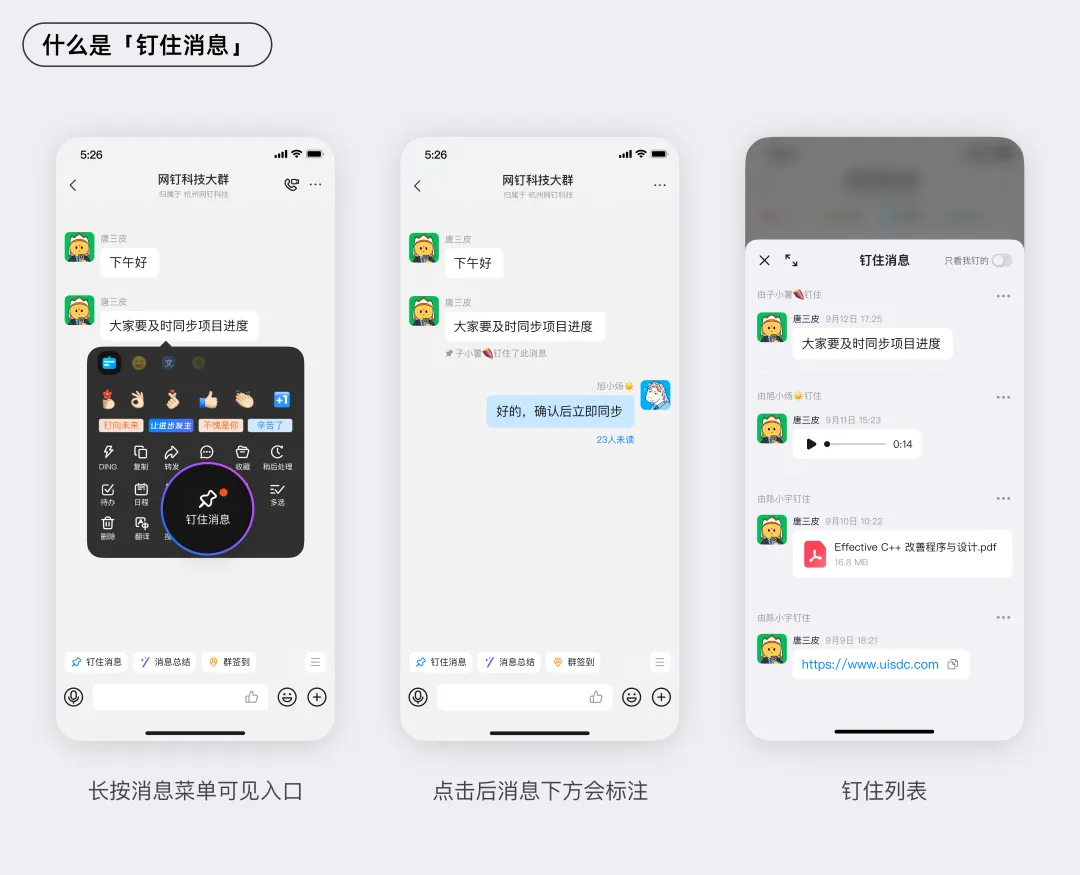
Supports pinning important messages in a conversation for easy access at any time, without causing disturbance and with a lighter footprint. Whether in a group chat or a one-on-one chat, once someone pins a message, everyone in the conversation can see it, creating a shared, slow-moving information stream that promotes transparency and smoother collaboration.
There are too many chat messages! To find important information, you have to search through each message one by one, like looking for a needle in a haystack; new members joining a group feel completely confused—where should they start? Now, you can pin all important messages in a conversation for easy access anytime. Once a group member pins a message, everyone in the conversation can see it.
Compared to “Pin to Top” 🔝, it doesn’t disturb others and is more lightweight.
Compared to “Save” 🌟, it’s visible to everyone and supports multi-person collaboration.
How to “Pin a Message”
Steps:
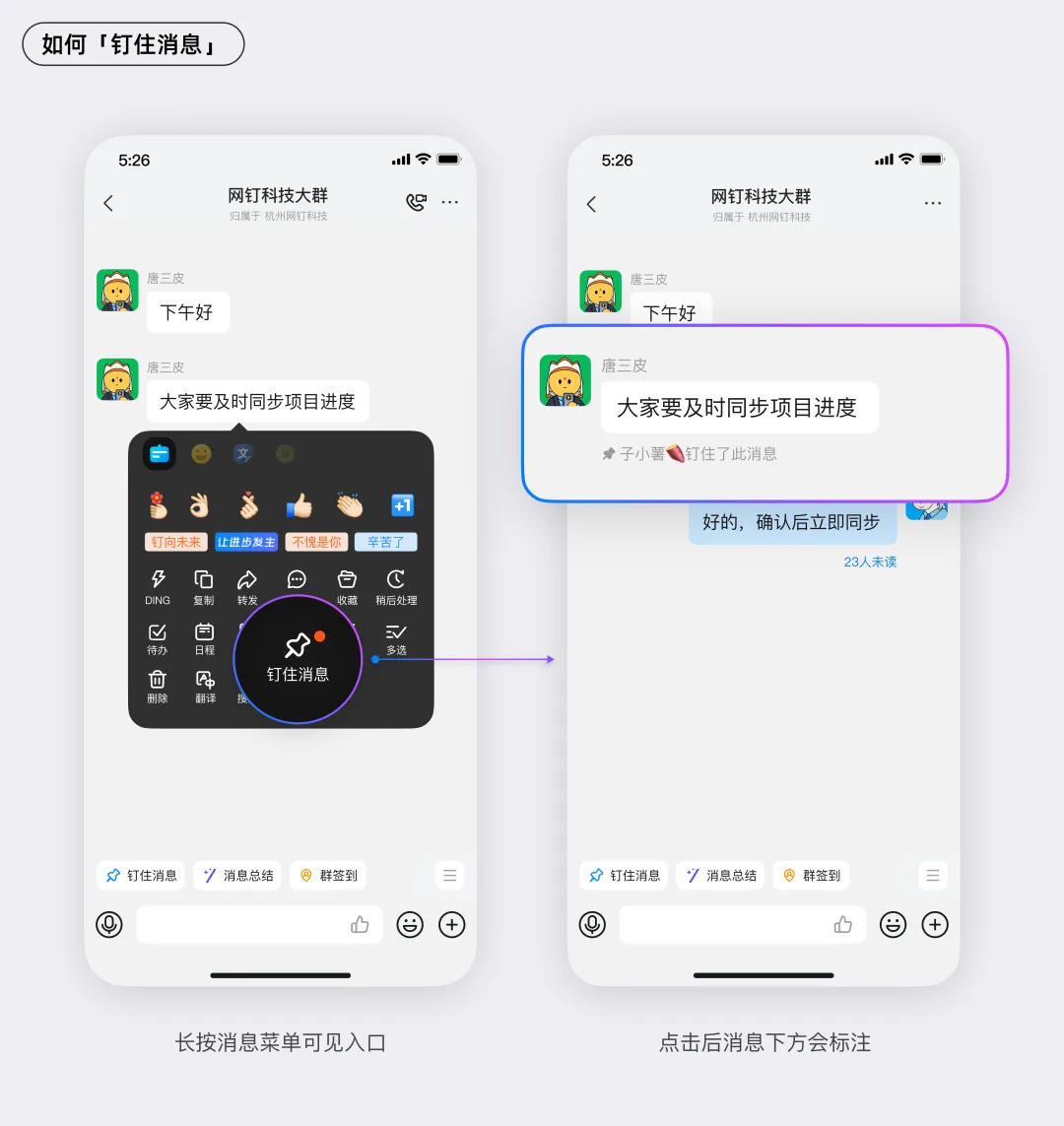
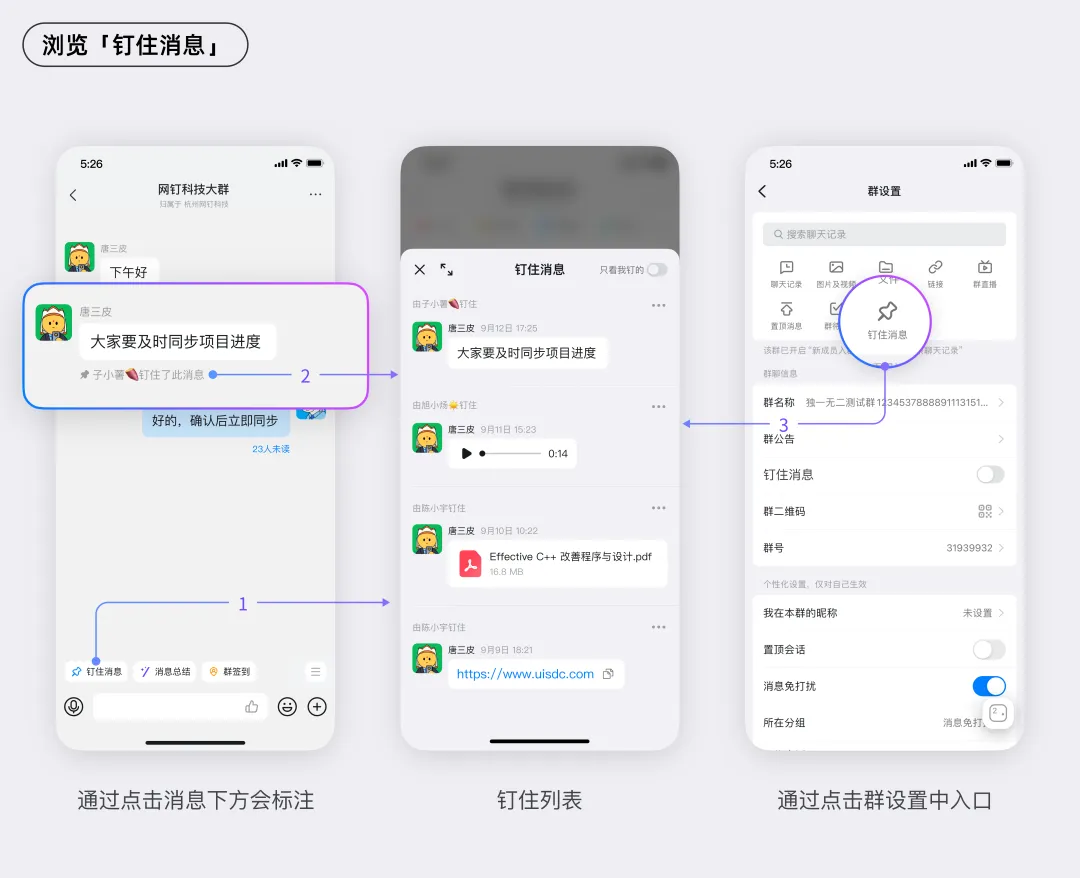
1. Tap “Pin Message” in the message menu.
2. The group members who pinned this message will be marked below the message, visible to everyone.
Where to View “Pinned Messages”
1. At the top of the chat’s quick bar is the “Pinned Messages” entry (ps: For groups whose quick bar has been manually edited, you need to move “Pinned Messages” to the front manually);
2. Tap “X has pinned this message” to open the pinned messages list and locate the specific message;
3. Mobile app—Settings page—Chat History—Pinned Messages.
Message Re-edit
Supports re-editing messages you’ve already sent. After editing, no notification is sent to recipients, and the chat message order remains unchanged. There’s no need to recall and resend, so you can type with confidence.
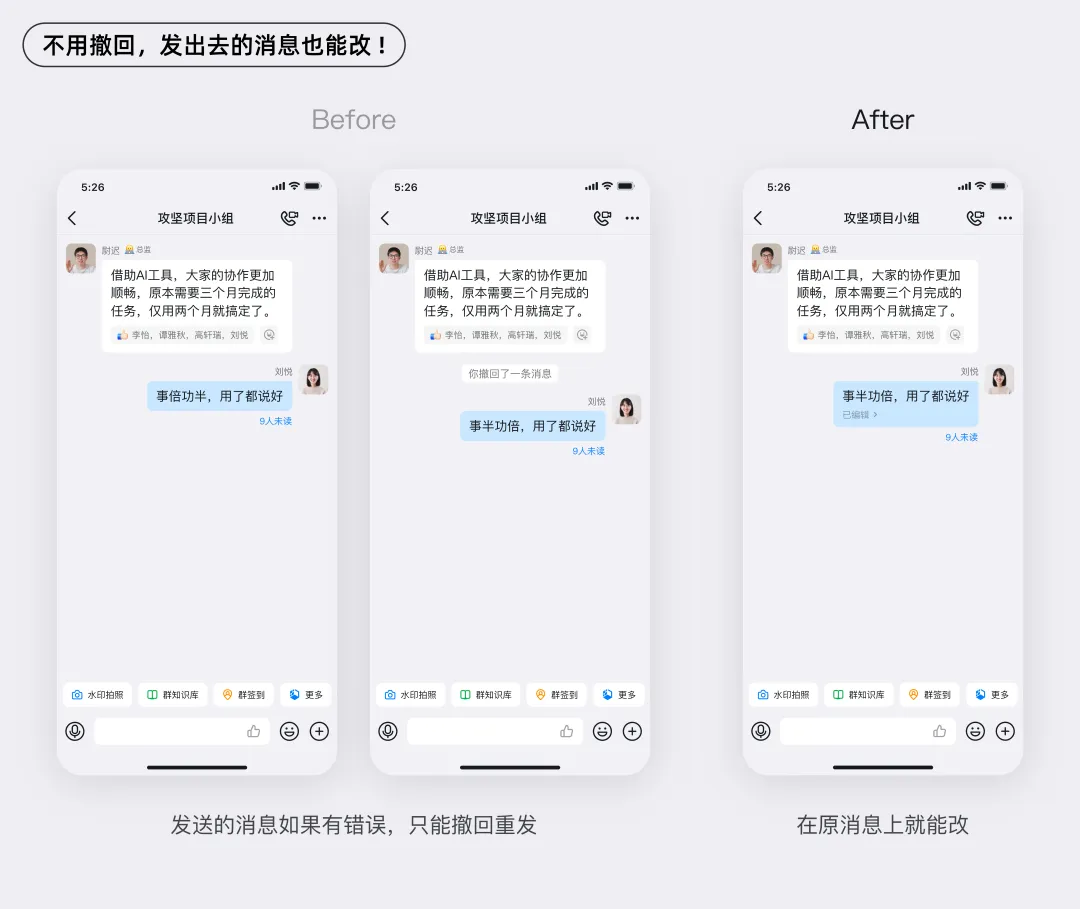
In the hustle and bustle of daily work, it’s inevitable to accidentally type a typo. For those who take their work seriously, they always hope that the messages they send are as “precise” as they are themselves. When facing a typo or incorrect opinion that has already been sent, recalling and resending not only leaves a clear trace but also notifies the message recipients again, which can create psychological pressure and leave people feeling overwhelmed.
Now with “Re-edit,” you can directly adjust the original message, type more freely, and let your thoughts and communication efficiency soar together.
How to “Re-edit”
Steps:
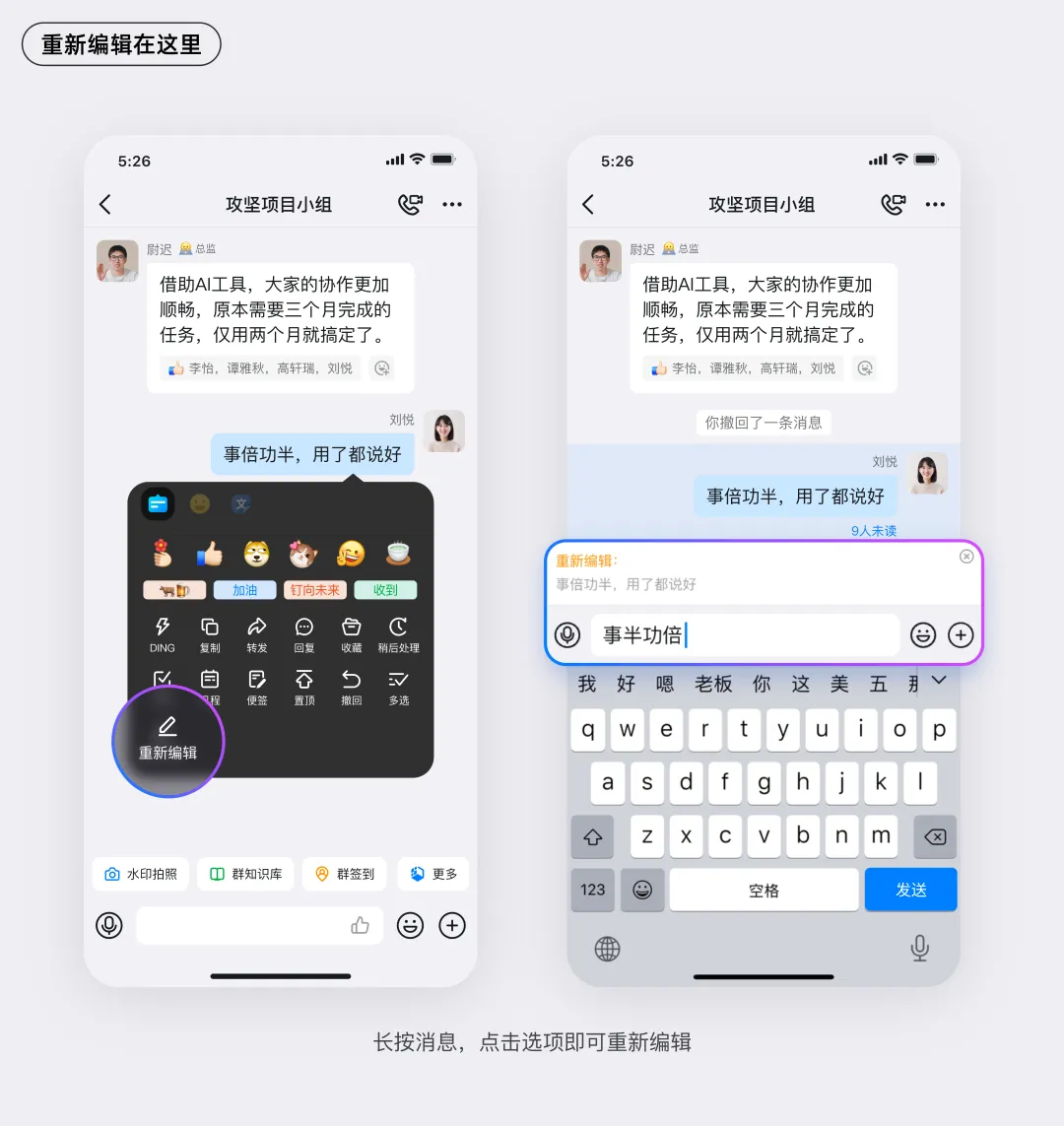
1. Select the message you want to edit. On mobile, long-press the message; on desktop, right-click to open the message menu and select “Re-edit.”
2. Edit the message content in the input box and tap Send to apply the changes.
3. Edited messages will display the label “Edited.” The edited message won’t be pushed to recipients again, and the message-sending order remains unaffected.
4. Tap the “Edited” label to view the message’s editing history.
With DingTalk’s three powerful communication tools—Photo Album, Pin Message, and Message Re-edit—you can handle daily tasks or respond to emergencies with greater confidence and ease.
DomTech is DingTalk’s officially designated service provider in Macau, specializing in providing DingTalk services to a wide range of customers. If you’d like to learn more about DingTalk platform applications, you can contact our online customer service directly, or reach us by phone at +852 95970612 or by email at [email protected]. We have an excellent development and operations team with extensive market service experience, ready to provide you with professional DingTalk solutions and services!