




 Português
 English
In today's fast-paced work and life, efficient and convenient communication is crucial.
DingTalk Meetings continuously introduces various quick ways to join meetings—through WeChat, calendars, or meeting links—for instant access. Recently, a new multi-device joining feature was launched, bringing users a fresh and improved meeting experience.
Whether you need to switch seamlessly between devices or want quick access to meetings, DingTalk Meetings has you covered.
Multi-Device Joining
Flexible Device Combinations
DingTalk Meetings' new feature—multi-device joining—lets up to 5 devices join a meeting simultaneously, with the ability to switch microphones and cameras. This solves issues like desktops without headsets, mid-meeting device changes, and multi-device collaboration.
Now you can experience presentations on your computer while using your phone's microphone for speaking and your tablet for real-time annotations, taking your video conferencing experience to the next level!
Call-in Joining
Real-Time Meeting Alerts—No Waiting Required
In online meetings, you're often invited to join. Before or during a meeting, you might receive various alerts or be called in by phone! When someone calls you in, the invitee will receive a meeting call notification on DingTalk.
Proactive Joining
Smooth Access Through Multiple Methods
You can also join meetings proactively. Use methods such as meeting cards, meeting IDs, join links, meeting lists, calendars, or quick access from the notification bar to participate in video conferences.
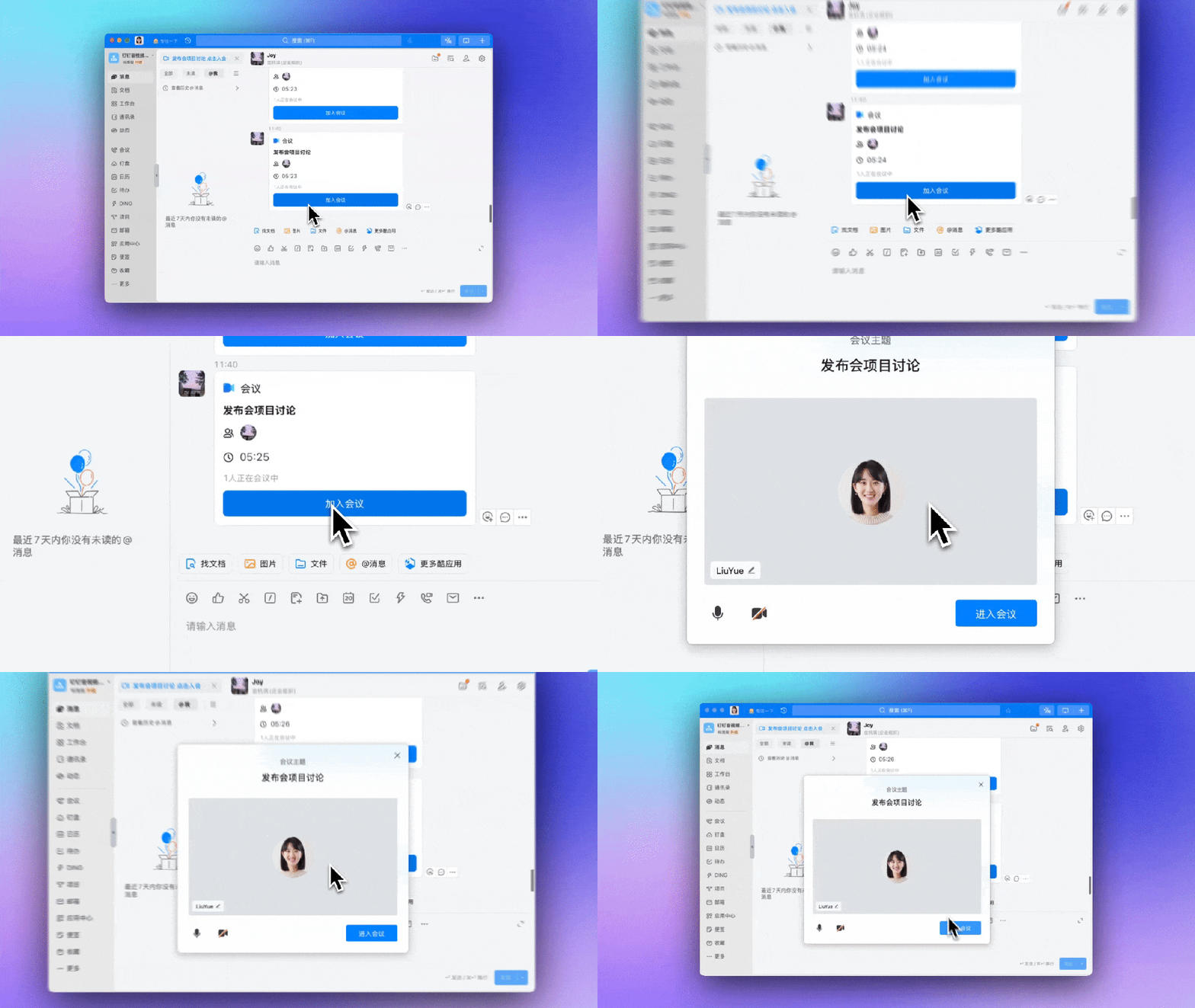
Meeting Cards: Click the meeting card sent by the other party in the chat window, then click "Join Meeting" at the bottom.
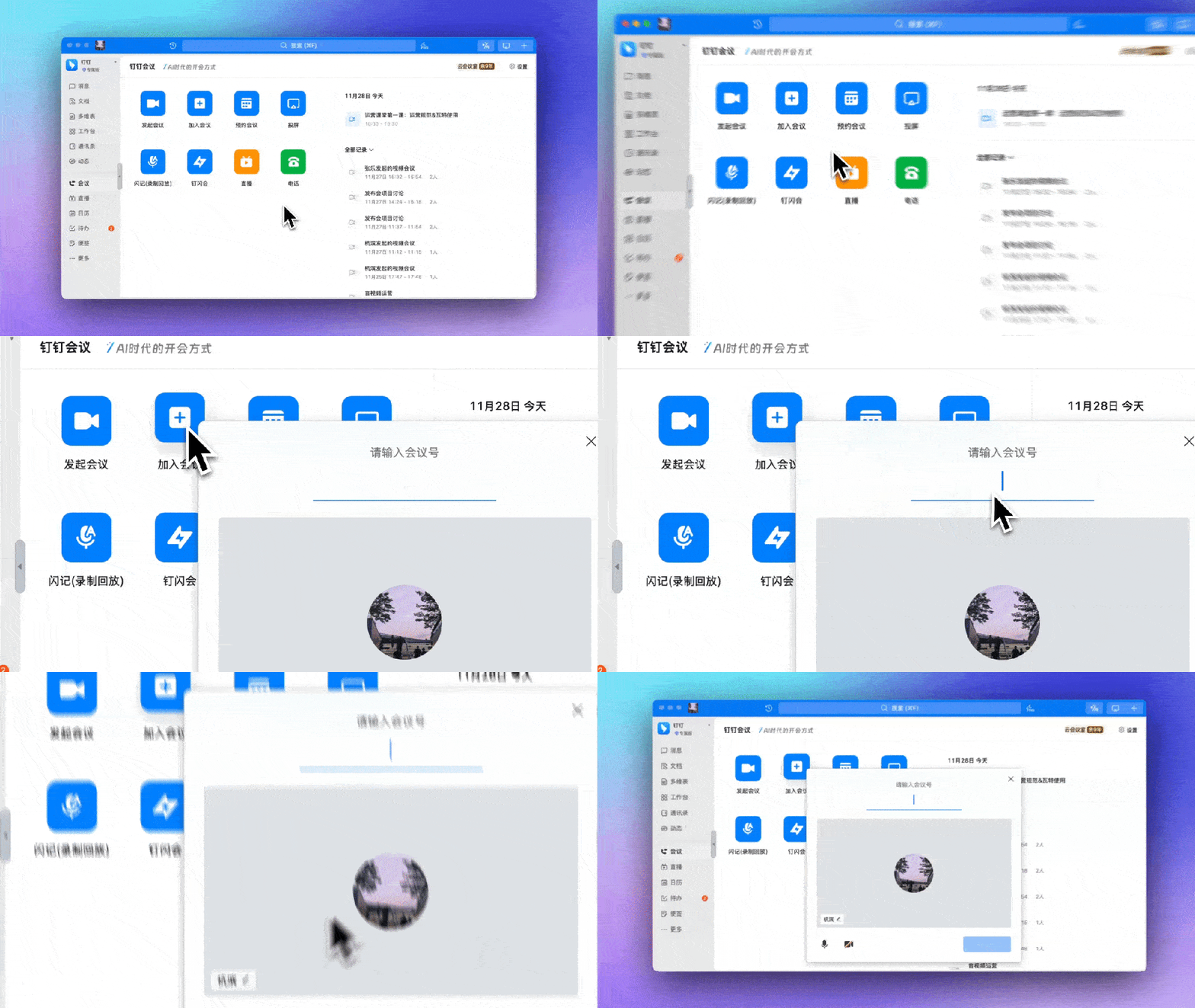
Meeting IDs: After logging into the DingTalk PC client, click the meeting icon on the left side of the client, select "Join Meeting," enter the meeting ID, and join the meeting.
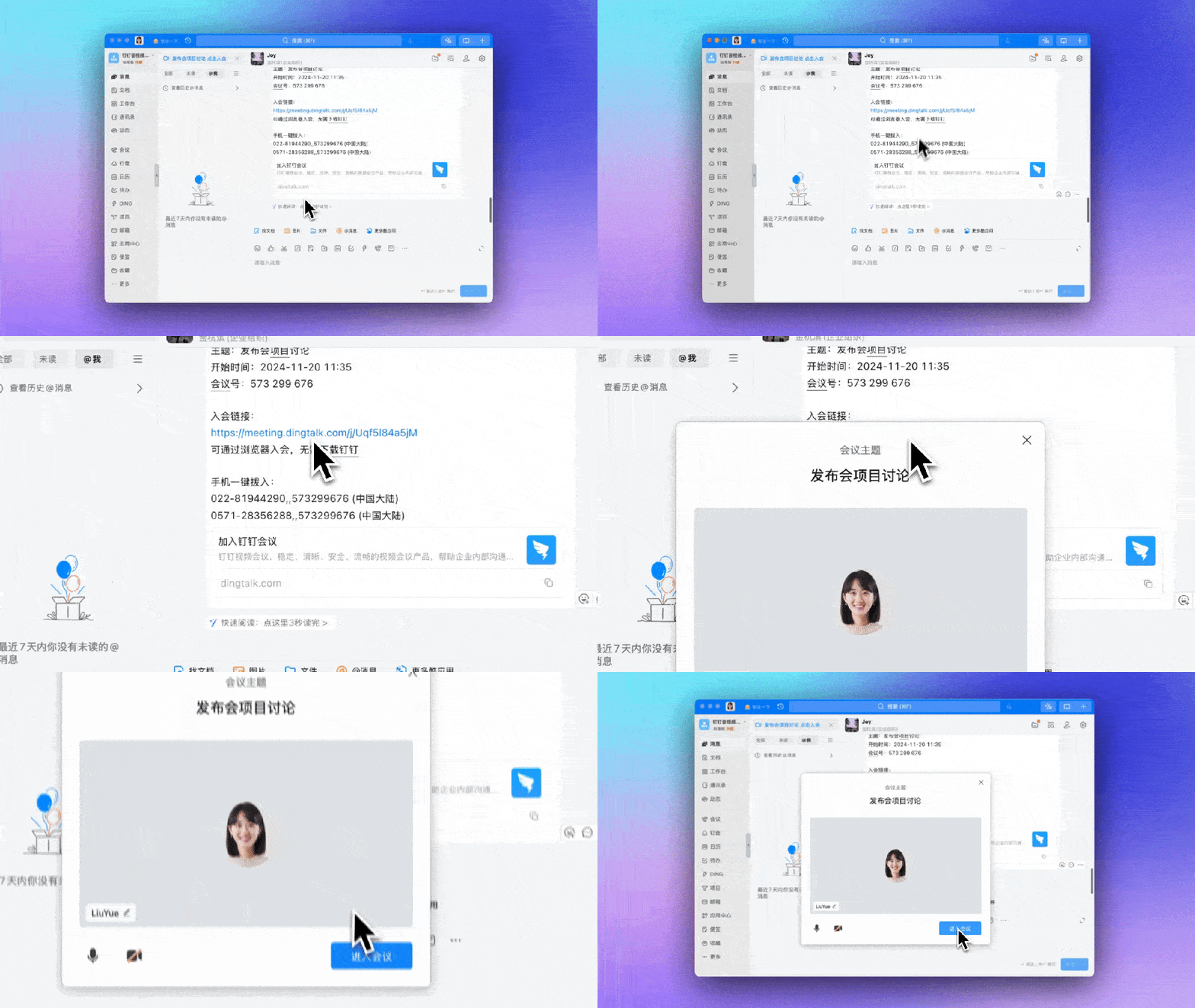
Meeting Links: Click the join link sent by the other party in the chat window, then click "Join Meeting" at the bottom.
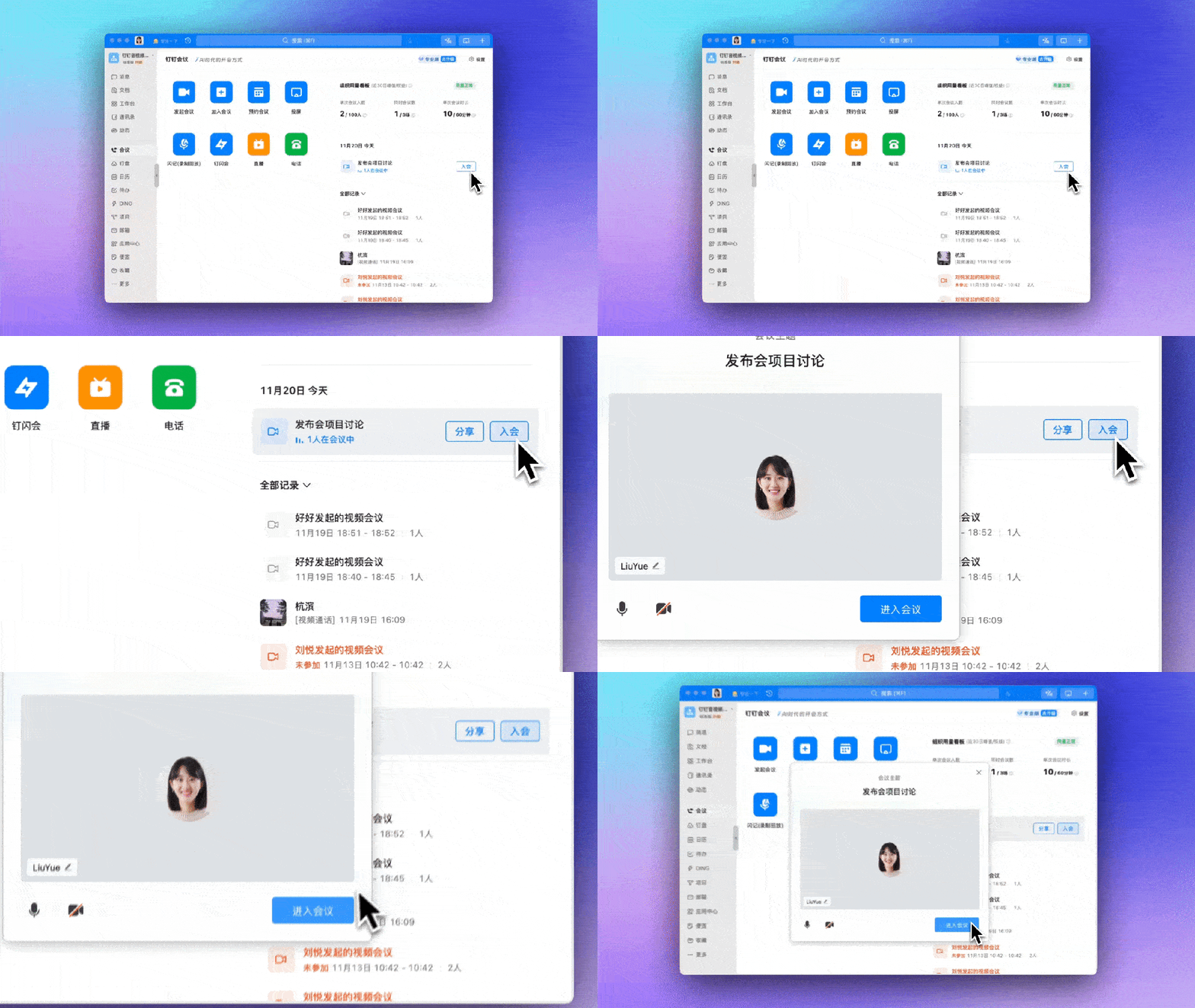
Meeting Lists: Open the DingTalk PC client and log in. Click the meeting icon on the left side of the client, view the desired meeting in the list on the right, and click to join.
Calendars: Open the DingTalk PC client and log in. Click the calendar icon on the left side, then select the meeting you want to join.
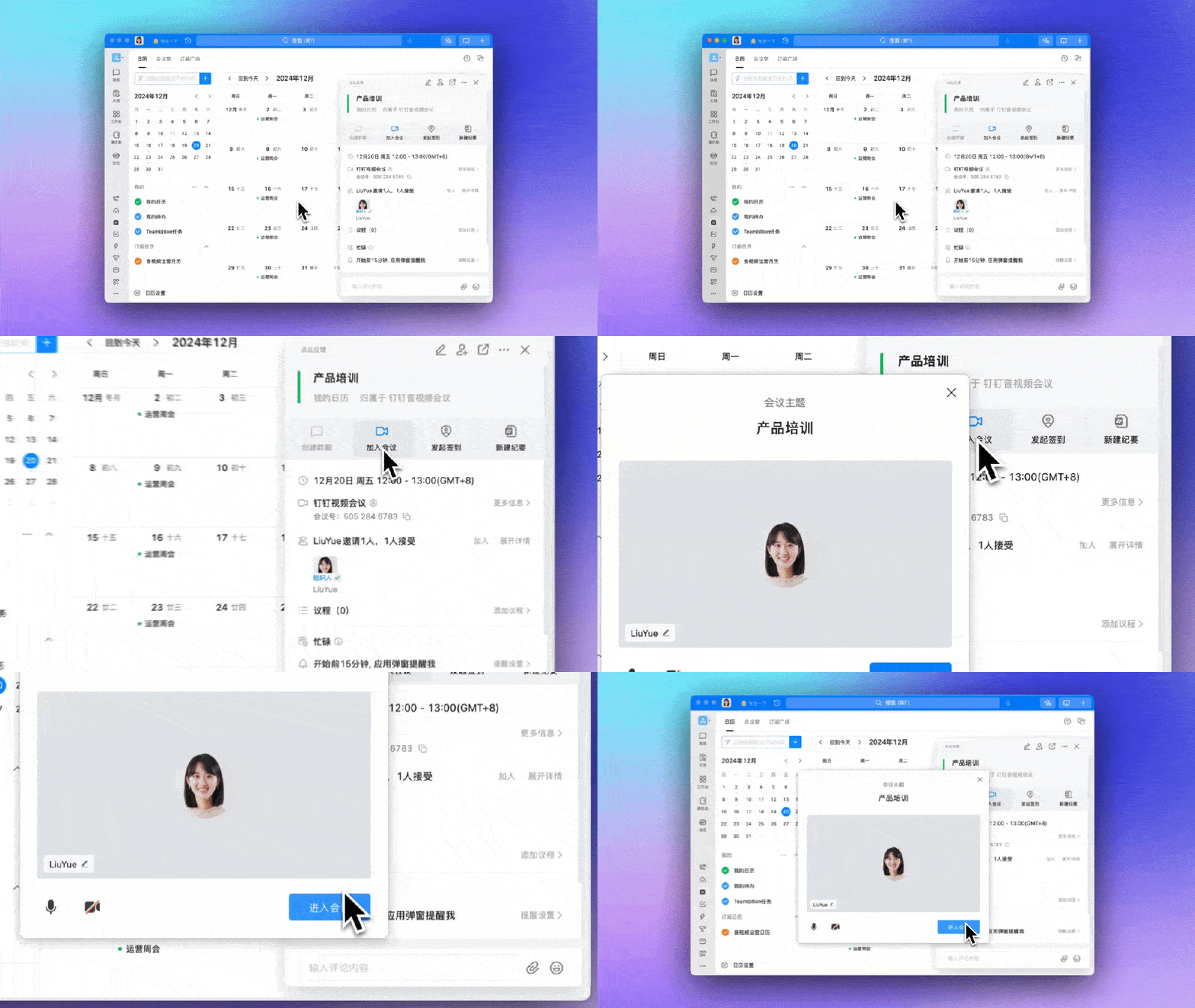
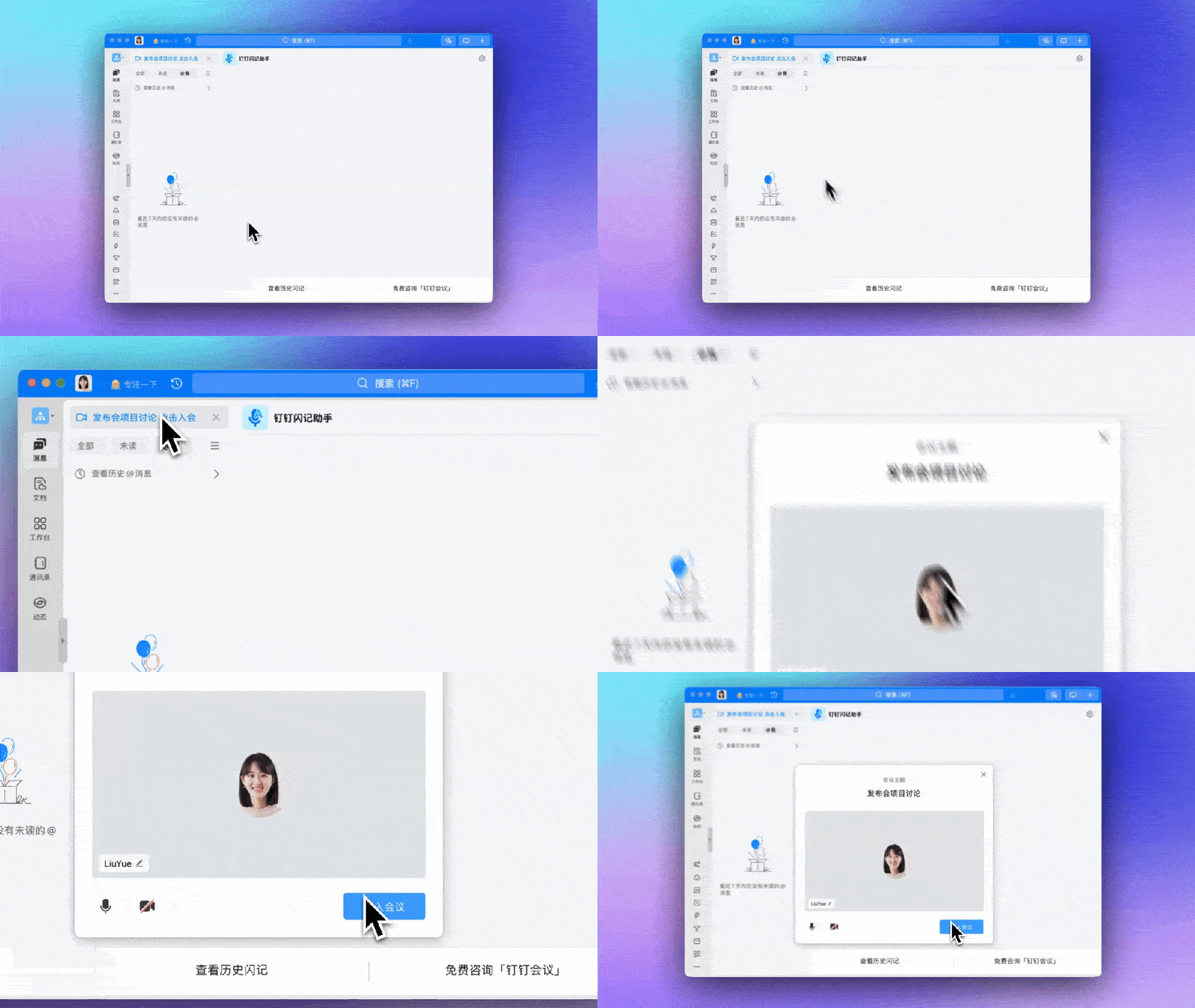
Notification Bar: For meetings that have already started, you can quickly join through the blue bar in the notification area at the top of the PC chat list.
WeChat Joining
Join DingTalk Meetings Without Downloading DingTalk
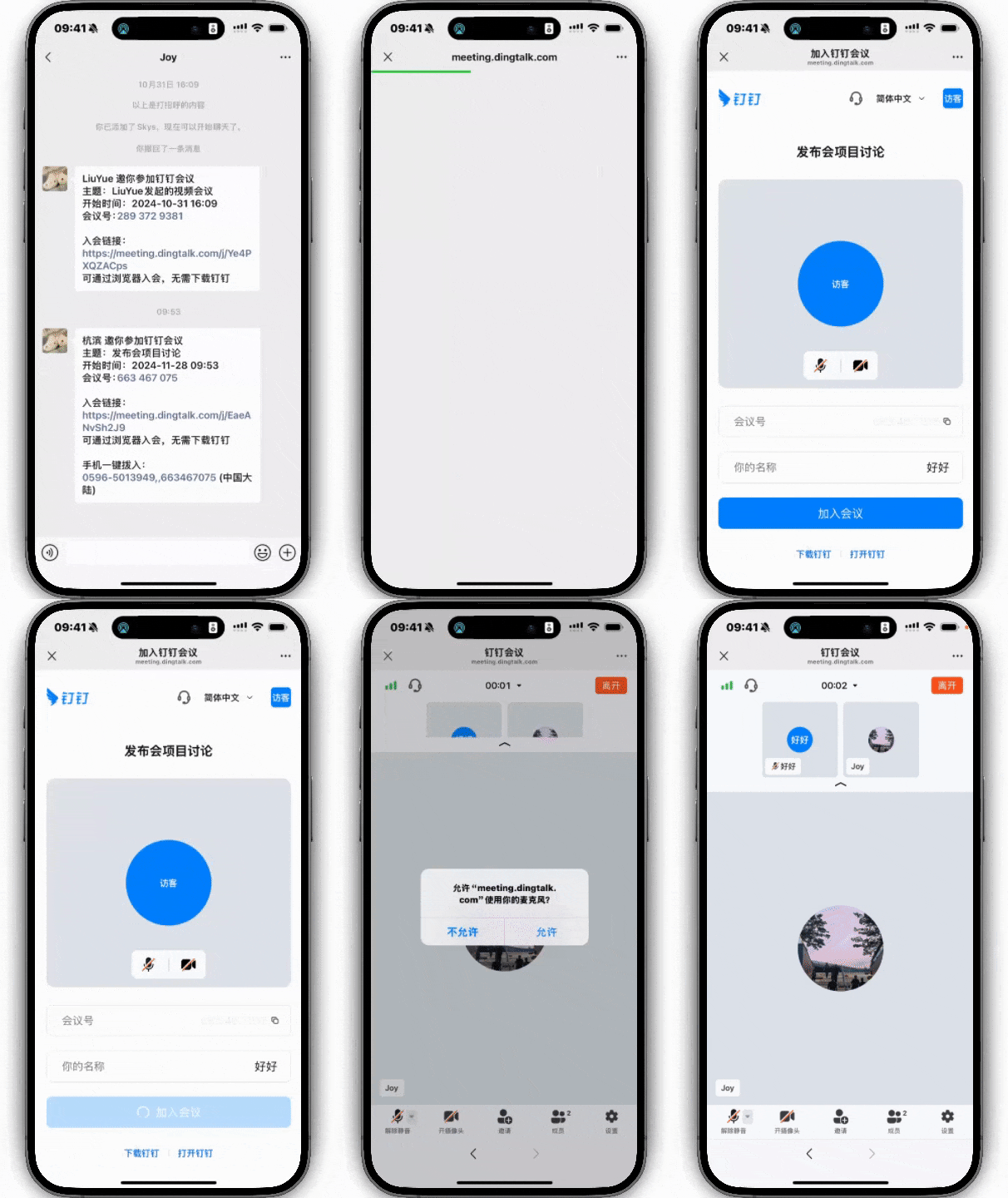
Through a join link or meeting ID, you can directly join a DingTalk meeting within WeChat (or a browser) without registering or downloading DingTalk—just verify your phone number to join.
DomTech is DingTalk's official designated service provider in Macau, specializing in providing DingTalk services to a wide range of customers. If you'd like to learn more about DingTalk platform applications, feel free to consult our online customer service or contact us by phone at +852 95970612 or by email at [email protected]. With an excellent development and operations team and extensive market service experience, we can provide you with professional DingTalk solutions and services!