



 Português
 English
DingTalk, which you use every day,
actually has so many "hidden features" you might not know about.
You don’t need a bunch of productivity tools—DingTalk alone is enough.
Today, I’m sharing 6 super practical tips
that can boost your efficiency—but you might not have used them yet.
Save time and secretly work harder (or fish more)!
Message Re-editing
Correct typos and resend with ease—lightweight and convenient
In the past, if you noticed a typo in a message sent on DingTalk, you had to recall it and resend. But then, the recipient would see a notification: "You recalled a message."
To avoid this awkward situation, you can use DingTalk’s "Re-edit" feature.
If you spot a typo or an inappropriate expression in a message, no need to recall and resend. Just click "Re-edit," make your changes, and send it again. It’s much easier to correct mistakes this way.
Plus, the edit history is lighter—only a small "Edited" badge appears in the lower-left corner of the message.
Master the right way to edit messages, and you’ll feel more confident and composed during work communication.
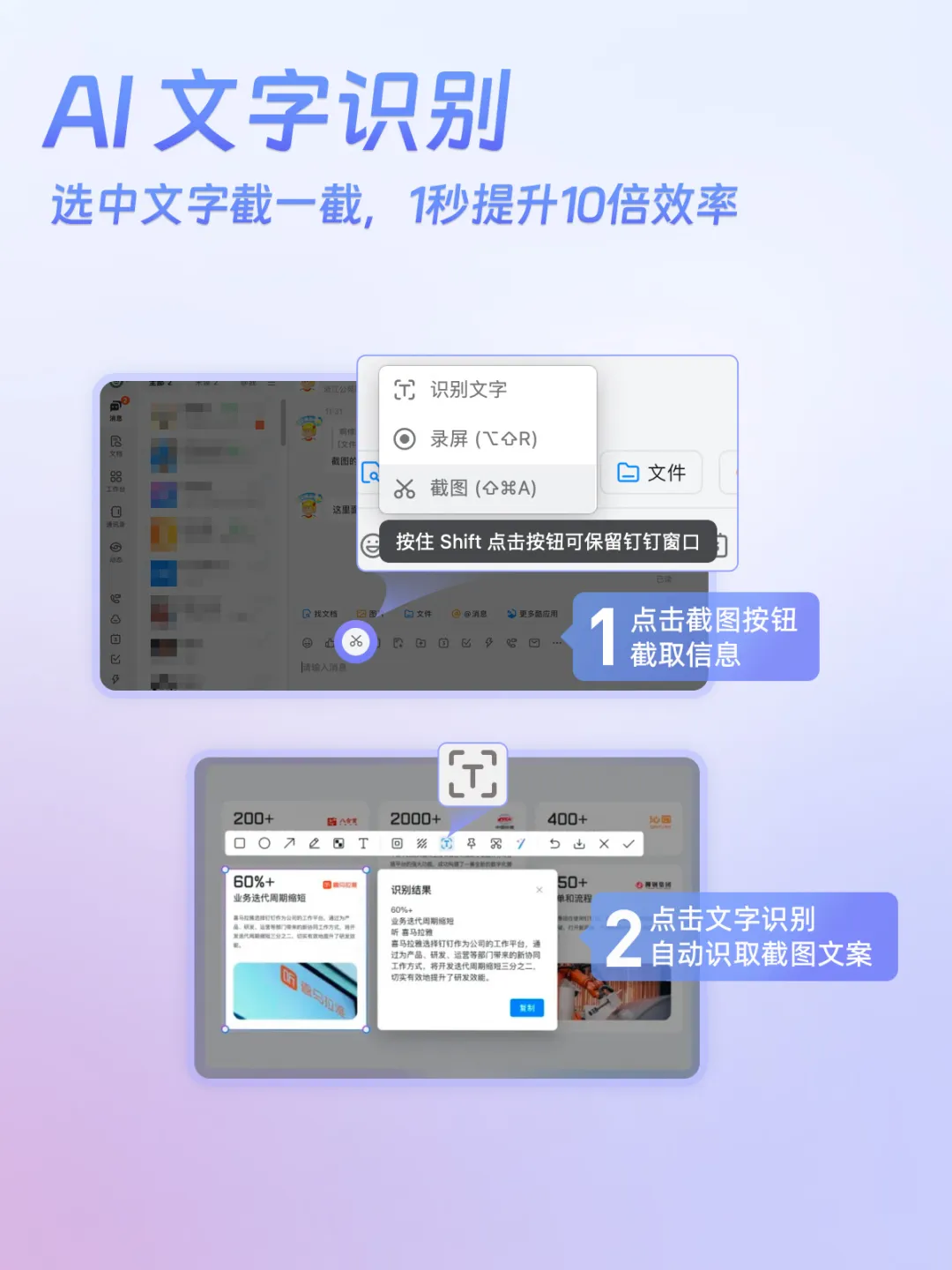
AI Text Recognition
Select text, take a screenshot, and boost efficiency by 10x in just 1 second
In daily life, you’ve probably run into these problems:
● Your boss sends you a document as an image or PDF, and you want to reuse the content—but typing it out word by word takes too much time.
● You find great content on a website but can’t copy it directly.
● When filling out a form, you have to manually transcribe information from a document or screenshot, which is prone to errors.
Do you type line by line, or take a screenshot, upload it to another OCR tool, and then copy the recognized text?
Try DingTalk’s "Text Recognition" feature! It supports images, web pages, spreadsheets, PDFs, and more. Just select the area you want to recognize when taking a screenshot, and it instantly converts the text into an editable format—easy to copy and edit.
Even better, you don’t need to open DingTalk to use this feature. On a Mac, press "Shift+Command+A," and on Windows, press "Ctrl+Command+A" to activate it. So convenient!
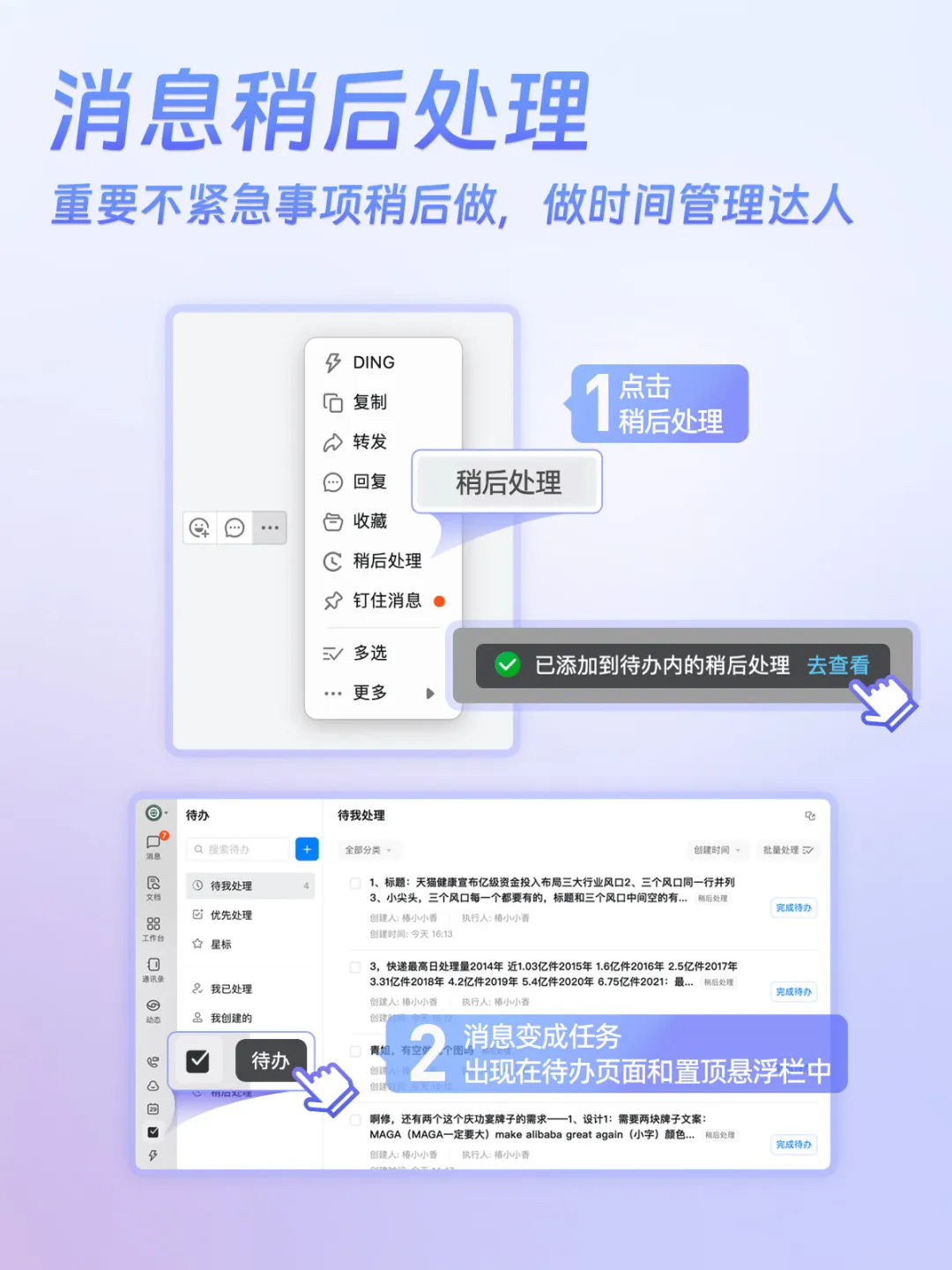
Message Snooze
Handle important but non-urgent tasks later—become a time-management pro
Work simply isn’t complete without task reminders.
You want to focus on something without distractions, but you’re worried about forgetting if you don’t respond right away. Creating a new task on the to-do page requires several steps—so is there a better way to set reminders?
In fact, most workplace distractions come from chat messages. For important but non-urgent tasks—or messages you can reply to later—you can use DingTalk’s "Snooze" feature. It’s incredibly convenient!
Just right-click on a message and select "Snooze." The message instantly turns into a task and appears on your to-do list and in the pinned floating bar.
In an era of information overload, our attention is constantly being pulled in different directions by countless messages. "Snooze" offers a simple, clear way to help you stay focused, reduce distractions, manage your time effectively, and stay organized.
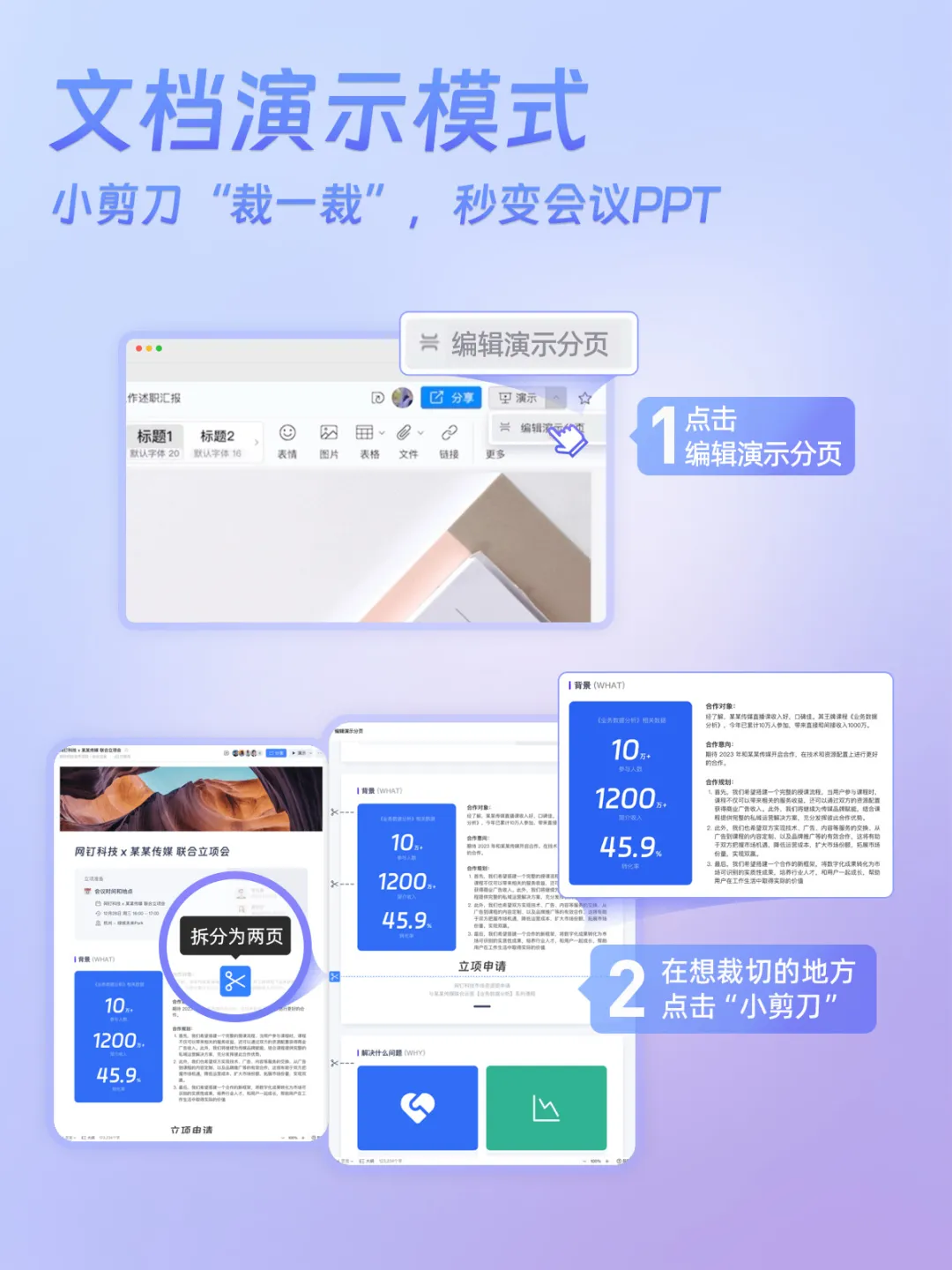
Document Presentation Mode
Cut with the "scissors"—turn any document into a meeting PPT in seconds
Many companies have moved away from PPTs and started using online documents for meetings. However, the layout of these documents isn’t ideal for presentations—while you’re explaining one part, participants may already be scrolling to other sections.
Is there a way to highlight key points without sacrificing readability—and keep things simple?
DingTalk’s "Presentation Mode" was designed to solve this problem.
First, it automatically divides your document into pages based on its original structure. If you want to fine-tune the presentation, you can manually "Edit Presentation Pages" by clicking the "scissors" icon on the preview page.
Document Version History
Track collaboration clearly—access previous versions with a single click
You’ve probably encountered these situations:
● When multiple people collaborate on a document, it’s hard to tell who changed what and where.
● You want to retrieve an earlier version of the document, but the current version has already been edited.
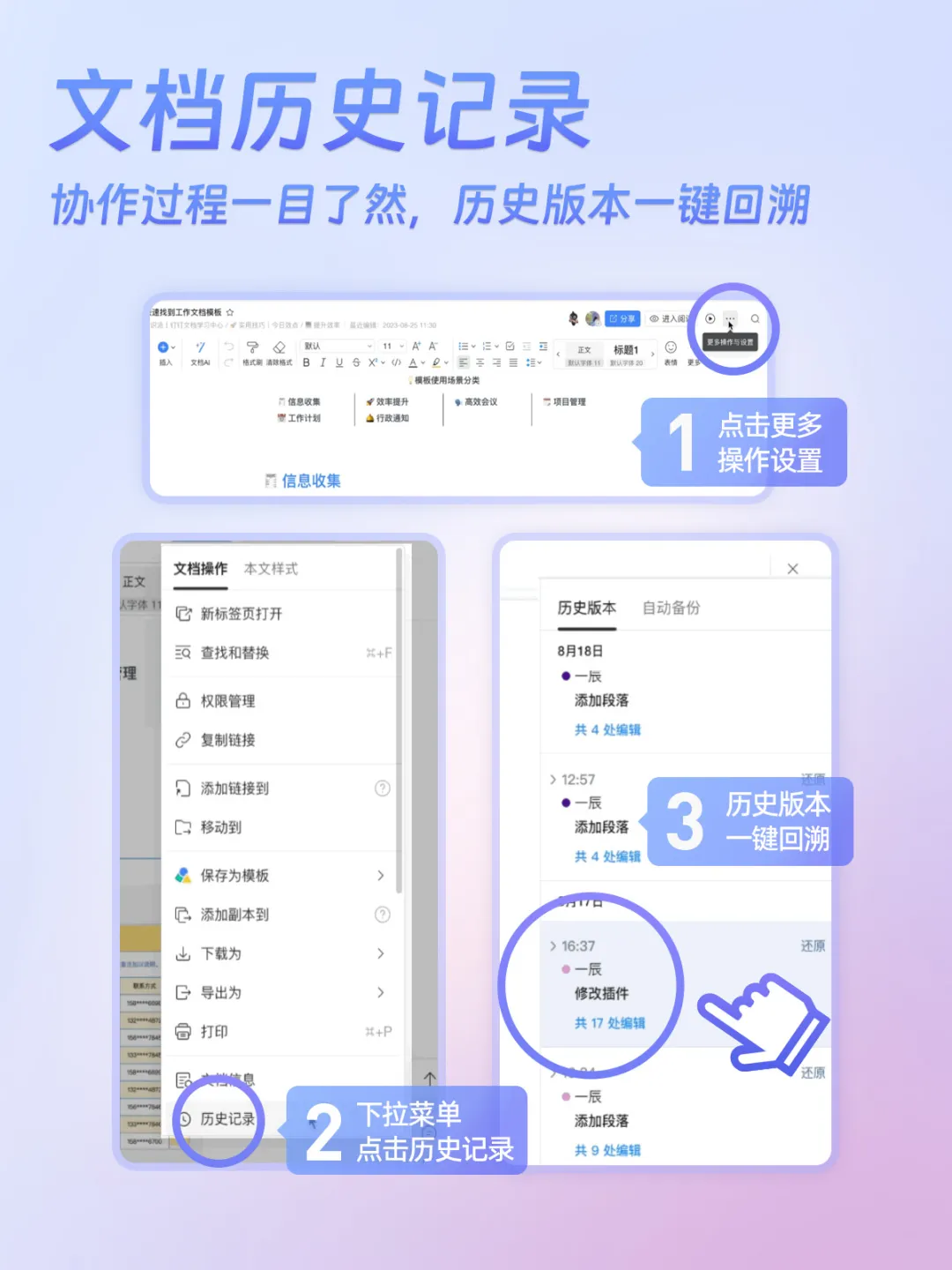
DingTalk’s document version history lets you easily track changes, access previous versions, and see collaboration records at a glance. No more worrying about unauthorized edits. Whether it’s adding or deleting content, adjusting fonts, or changing the format, every change is recorded in detail, making it easy to track.
Users can also click on specific content to jump directly to that section in the document, and the edited areas are highlighted, making changes easy to spot and collaboration transparent.
To restore an earlier version, just click "Restore" for a quick recovery.
Meeting Document Sharing
Collaborate with multiple people—make meetings more efficient
You’ve probably used DingTalk’s screen-sharing feature during video calls. But you may have also faced these awkward situations:
● When a colleague shares their screen, you can only follow along and watch the content—there’s no way to contribute actively.
● In long meetings, your train of thought gets interrupted, making it hard to quickly identify information relevant to you.
● A colleague shares a bunch of content, but after the meeting, you can’t find the documents to review or edit later.
All these issues can turn a 20-minute meeting into a 1-hour ordeal.
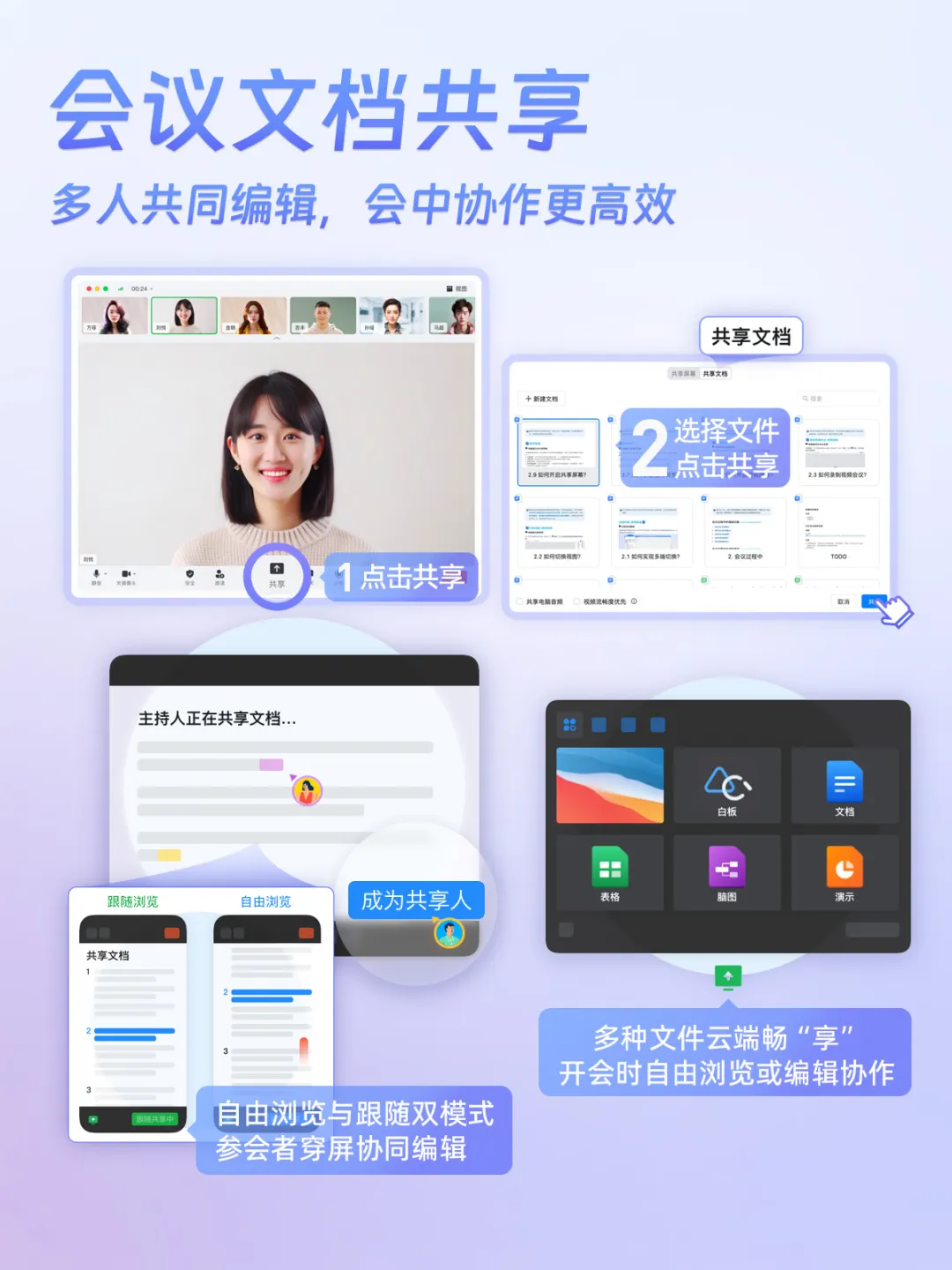
That’s where DingTalk’s "Document Sharing" feature comes in. It breaks through physical barriers to sharing and collaboration, enabling multiple people to work together. Whether it’s a document, spreadsheet, or presentation, various file types can be shared seamlessly in the cloud.
For the presenter, this method also ensures privacy—no need to worry about a cluttered desktop or unexpected pop-ups.
Participants can either follow the presenter’s pace or browse freely, efficiently absorbing the meeting content and identifying key information. After the meeting, they can quickly locate all shared materials for review.
Moreover, participants can leave comments and collaborate in real time directly on the shared document—combining voice communication with instant document updates. Every meeting becomes an efficient collaborative creation.
Have you tried any of these super useful features yet?
Give them a try and boost your productivity together!
DomTech is DingTalk's official service provider in Macau, dedicated to providing DingTalk services to a wide range of customers. If you’d like to learn more about DingTalk platform applications, feel free to contact our online customer service, or call +852 95970612 or email [email protected]. We have an excellent development and operations team with extensive market experience, ready to provide you with professional DingTalk solutions and services!