




 Português
 English
In daily work, we often encounter tedious processes—such as searching for task portals in office software, reading industry research reports that span dozens of pages, or frequently switching translation apps when communicating with overseas clients. These tasks are not only time-consuming and labor-intensive but also disrupt our workflow.
Today, we’re introducing several “small but powerful” features in DingTalk that can help you boost your productivity with ease!
/ at your fingertips
The efficiency shortcut behind the slash command
In the workplace, you might find yourself in this situation: When you need to send a document to a colleague, you have to navigate to the document page, locate the file, click Share, and then select the chat where you want to send it. This process is inefficient, and you might accidentally share the file with the wrong person.
When you want to create a new calendar event, you usually have to go to the left-side navigation menu, find “Meetings,” then select “Schedule Meeting.” The path is deep, or you have to click “New Event” in the input box toolbar—which isn’t very user-friendly for new DingTalk users.
When you want to check the approval progress during a chat, you have to go to the Workbench and click “OA Approval.” Not only is the entry point deep, but you also have to switch back and forth between pages.
Now, with DingTalk’s slash command (“/”), all of this has become much simpler.
Simply type “/” in the chat box or search box to quickly bring up the command panel. You don’t need to leave the current screen—you can complete the task in one step, saving time and effort!
For example, if you want to send a document during a chat, just type “/send document” in the chat box and select the file you want to send. This keeps the conversation flowing without delay and ensures the file is sent accurately to the right chat window. Once you try it, you’ll love it!
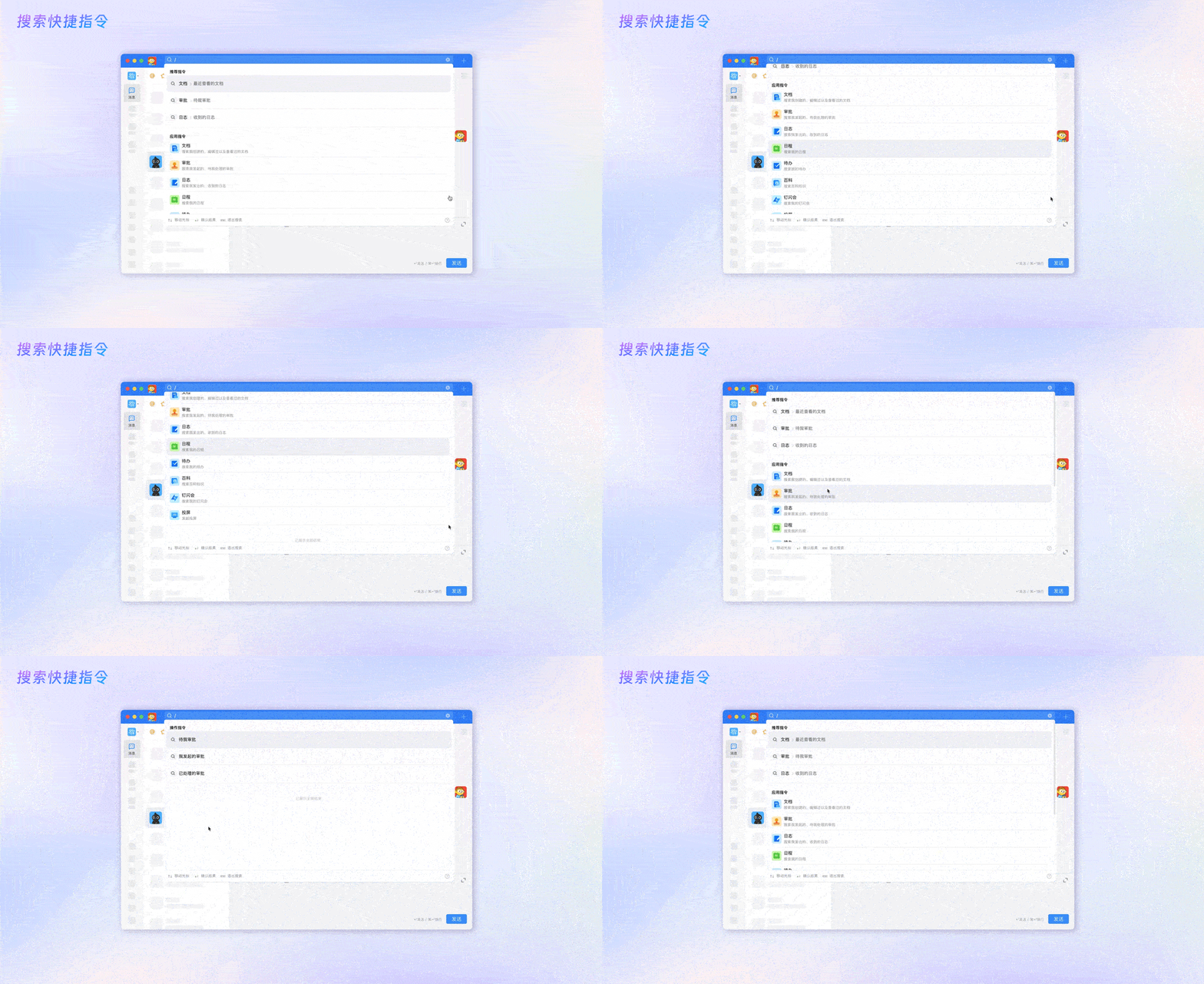
In addition to using the “/” shortcut in chats, you can also type “/” in the search box to quickly access features like approvals, documents, and logs. Currently, the search shortcut is only available on the desktop version.
👀 What can the slash command do?
When you type “/” in the chat box, the shortcut supports adding people, enabling/disabling Do Not Disturb mode, searching for chat files, chat images and videos, chat links, pinning/unpinning chats, sending red envelopes, creating new events, creating new to-dos, adding management chatbots, launching group polls, creating Ding Flash meetings, starting video calls, sending documents, creating documents, and initiating screen sharing.
The search shortcut supports viewing “Approvals Pending My Review,” “My Approved Requests,” “My Created Documents,” “Recently Opened Documents,” “Live Streams,” “My Posted Logs,” “Received Logs,” “Team Logs,” and “Unread Logs,” among others.
How to use the slash command?
Mobile:
1. Type “/” in the input box.
2. Tap the desired command in the shortcut panel.
Desktop:
1. Trigger the shortcut in chat: a. Click the “/” icon in the input box toolbar or type “/” directly; b. Tap the desired command in the shortcut panel.
2. Trigger the shortcut via search: a. Type “/” in the search box.
The shortcut supports using the ↑↓ keys to cycle through commands, the spacebar to select a command, and Enter to execute the selected action. The Delete key lets you go back one step. This minimizes the need to switch between your hands and the mouse or panel. It also remembers your most-used commands and prioritizes them at the top, greatly simplifying your workflow and boosting efficiency.
A tap on the message card’s tail,
“Quick Read” helps you grasp key points in 3 seconds
In the past, when faced with massive amounts of text data—such as industry reports or knowledge document links—we often wanted to quickly extract the most important information. But after spending hours reading, we’d easily forget the details. Even when watching a video course at double speed, you still need a dedicated block of time to watch, absorb, and understand the content—a luxury few busy professionals can afford while trying to upskill themselves.
Now, DingTalk’s Quick Read feature can help you summarize content and distill key takeaways.
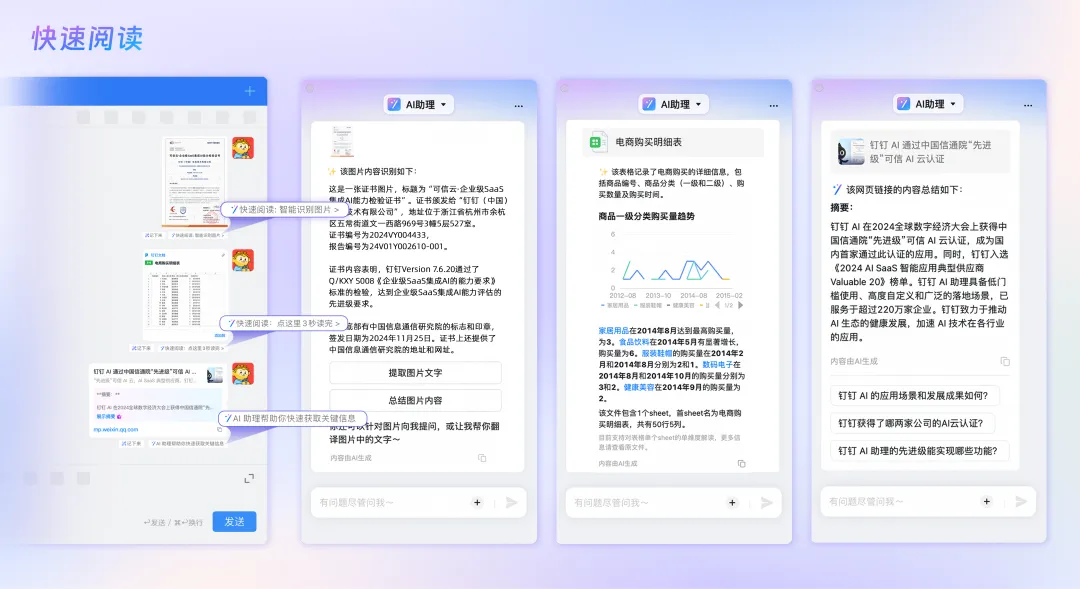
In just a few seconds, Quick Read can distill the main conclusions from an industry report, summarize the key points of a video course, and even intelligently analyze Excel files to provide data insights, making data analysis smarter.
Quick Read supports reading online and local documents in formats such as Word, PowerPoint, and PDF. It also handles web links, images, audio files, and audiovisual content. After reading, it automatically generates recommended questions and allows you to ask follow-up questions about specific details, so you can dive deeper into the content.
Turn on “Full-Interface Translation,”
Break down language barriers in cross-language communication
For those who frequently communicate with overseas colleagues or clients, non-native language communication can be challenging: words may not convey the intended meaning, technical terms may be hard to understand, and you may have to constantly switch between translation apps. This not only increases the risk of mistakes but also reduces communication efficiency.
Now, you can use DingTalk’s Full-Interface Translation to communicate seamlessly.
Simply enable the feature under “Settings & Privacy” > “General” > “Full-Interface Translation,” and DingTalk will automatically translate all on-screen text—including user data and ecosystem apps—into your target language. Currently, the feature supports translation into 30 languages. Whether you’re negotiating business with international clients or communicating within a cross-border team, you can now interact without barriers. For Chinese companies expanding overseas and employees of globally operating enterprises, this is an incredibly useful productivity tool.

Whether it’s finding features in seconds, quickly grasping key points, or communicating across languages, we hope these DingTalk features will help you enjoy a smoother work experience!
DomTech is DingTalk’s official service provider in Macau, specializing in providing DingTalk services to a wide range of customers. If you’d like to learn more about DingTalk platform applications, feel free to contact our online customer service or reach us by phone at +852 95970612 or by email at [email protected]. We have an experienced development and operations team with extensive market service experience, ready to provide you with professional DingTalk solutions and services!