




 Português
 English
DingTalk project Teambition
The process management "node workflow" capability has been completely upgraded.
Help employees efficiently achieve work goals and improve work quality.
Highlights of the Process Management "Node Workflow" Feature
● Collaborative work by multiple people for efficient task completion
○ Break tasks into sequential activities that are completed collaboratively by different roles, with a full record of each step in the execution process
● Online review process to accelerate decision-making
○ Review requests can be immediately sent to relevant personnel for processing anytime, anywhere
● Standardized and visualized workflows
○ New employees can quickly get up to speed by following standardized processes established by predecessors, reducing the time spent on trial-and-error and accelerating professionalization
· From supporting only one person per process step to supporting multiple people simultaneously
· From being best suited for transactional scenarios like sales service and product development to also supporting decision-making scenarios such as approvals and reviews
· From visualizing task progress through state diagrams to also supporting visualization of the task execution process through flowcharts
Enterprises can use "workflows" to solidify best practices and work guidelines, manage and pass on experience and knowledge, thereby optimizing and standardizing business processes, improving efficiency, reducing costs, and achieving strategic goals.
What Is a "Node Workflow"?
A node workflow supports the orderly breakdown of complex processes, clearly defining member roles and responsibilities. Multiple people can collaborate to complete tasks, and process nodes are displayed visually, allowing participants to clearly see upstream and downstream information in the process, making collaboration more efficient.
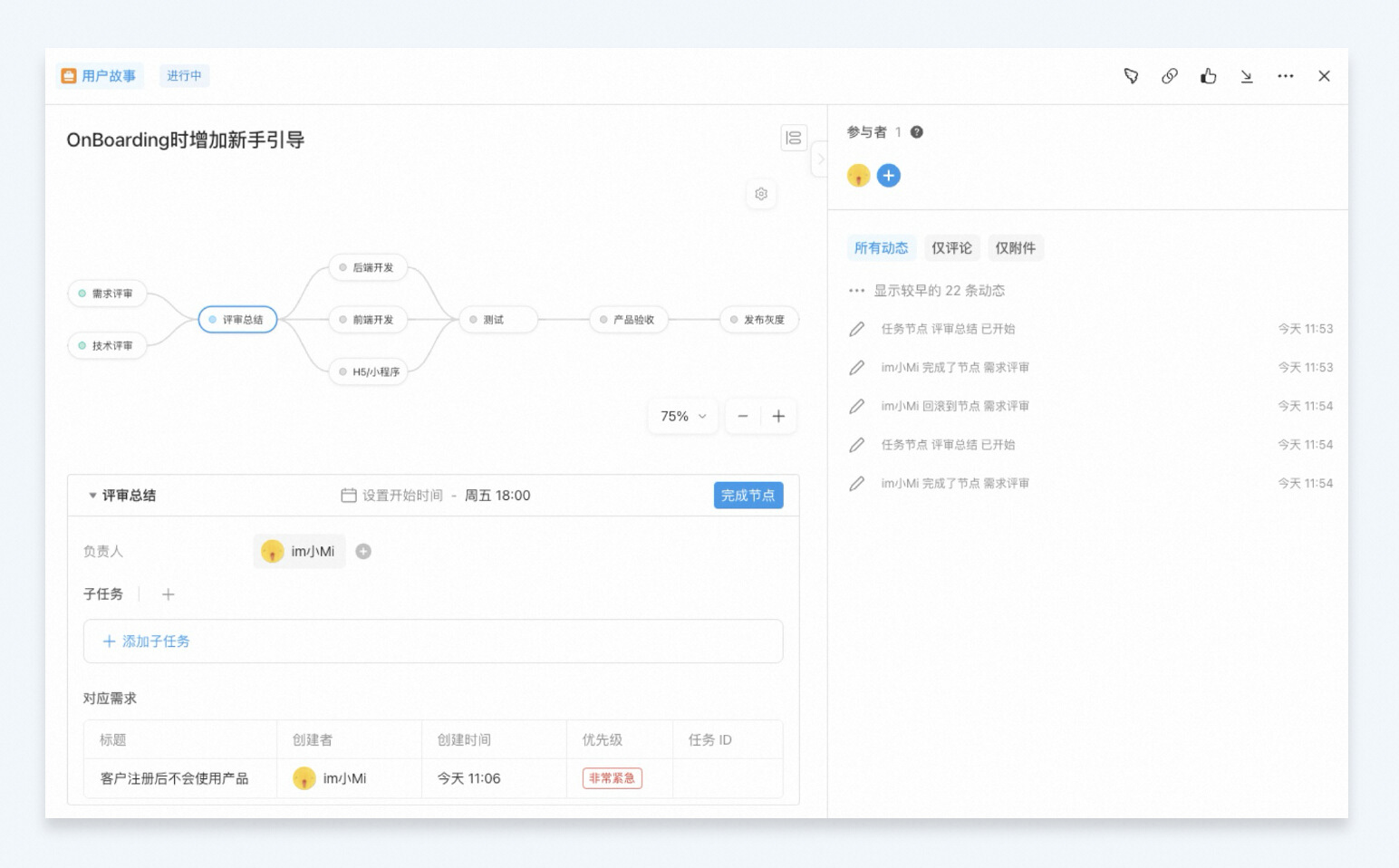
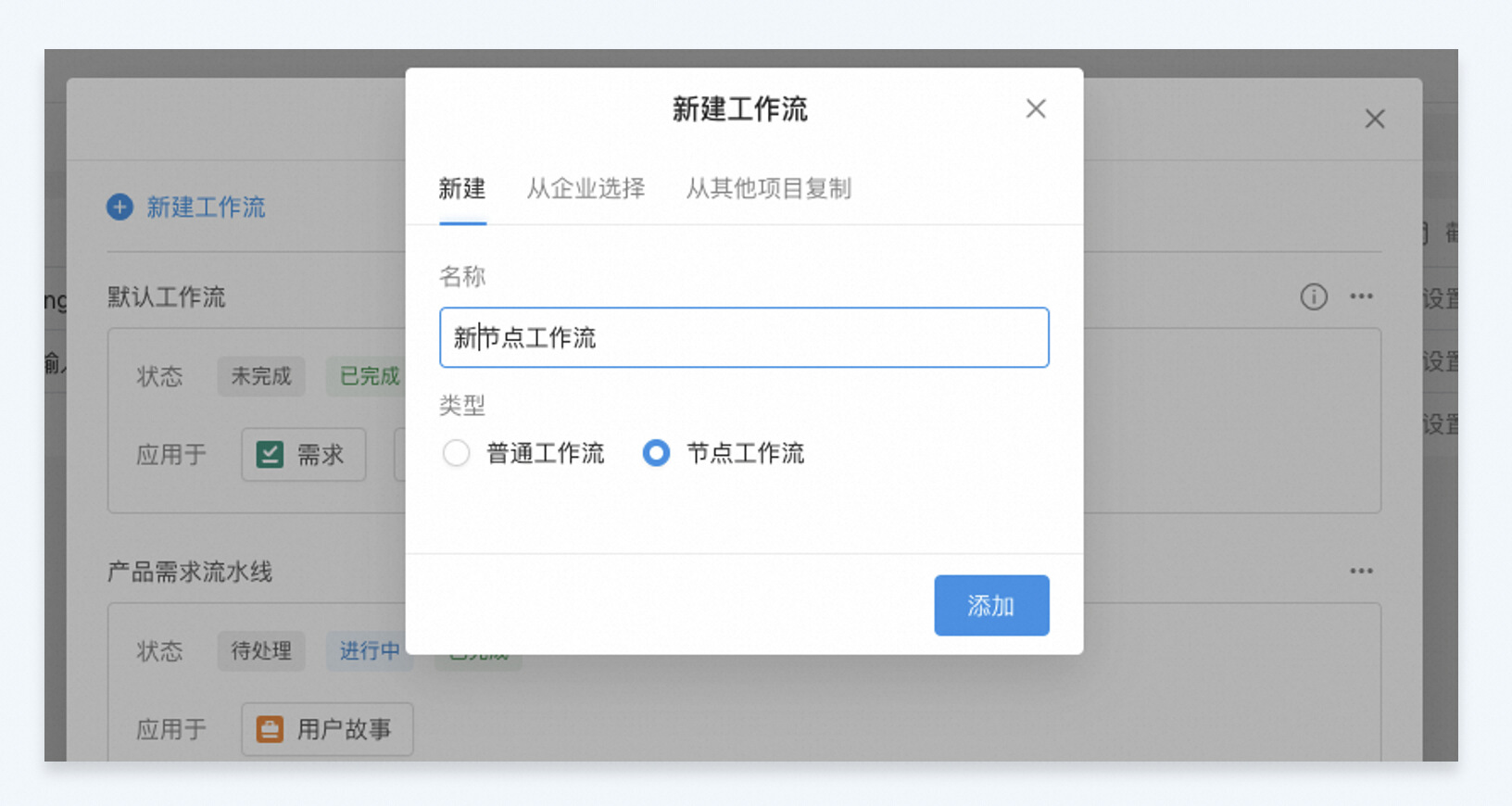
Create a New Node Workflow
In the "Customize" settings at the upper right corner of the project, select "Workflow," click "Create Workflow," and choose "Node Workflow" from the pop-up page to create a node workflow.
Node Orchestration
You can design a node workflow that fits your business scenario. When mapping out the business process, clearly define the node activities and sequence corresponding to each task state. In the state configuration, click "Add Node" to orchestrate one or more nodes for serial or parallel process flows. Click on a node to access "Node Configuration," where you can customize the node name, subsequent nodes, roles responsible for the node, node display conditions, task fields in the node form, subtasks, task views, and more.

Node Form Configuration
In a specific node, you can set the task field information displayed when the workflow transitions to that node, which fields are required, and the subtasks and tasks that need to be completed. For example, in a review-stage node, configure a "review opinion" field to display the review items under consideration in that stage, allowing experts to check item by item for compliance and fill in their review conclusions.

Node Transition Control
Supports setting transition conditions for individual nodes. By default, the workflow can move to the next node once any node leader completes the node—that is, an "approval or sign-off." It also supports setting conditions where all node leaders must complete the node before moving to the next node—that is, a "collective approval or sign-off."
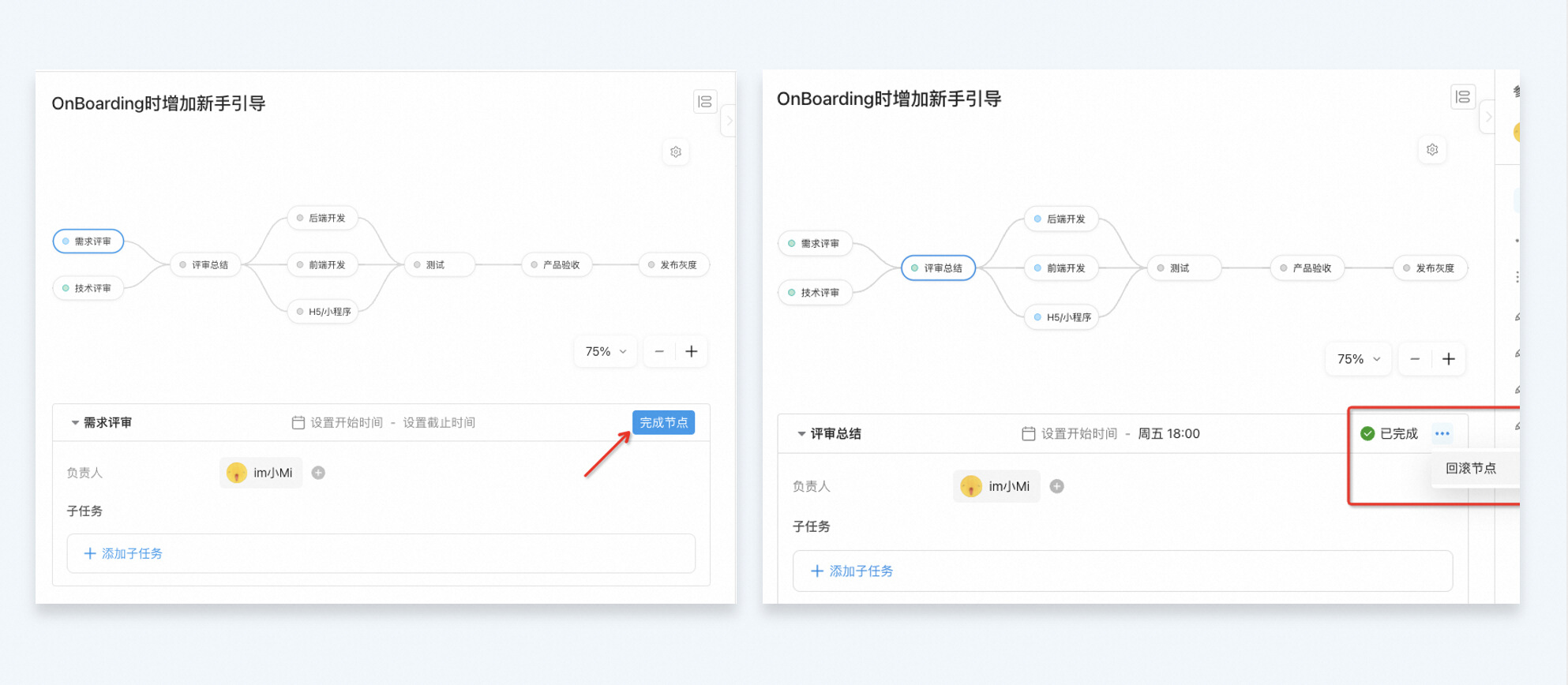

Node Pruning Capability
Based on different business scenarios and work types, task process activities can be pruned. You can manually prune a specific node, or use the automatic pruning feature, which automatically shows or hides a node process based on field conditions. For example, if a requirement has been rejected, the development process is automatically pruned.
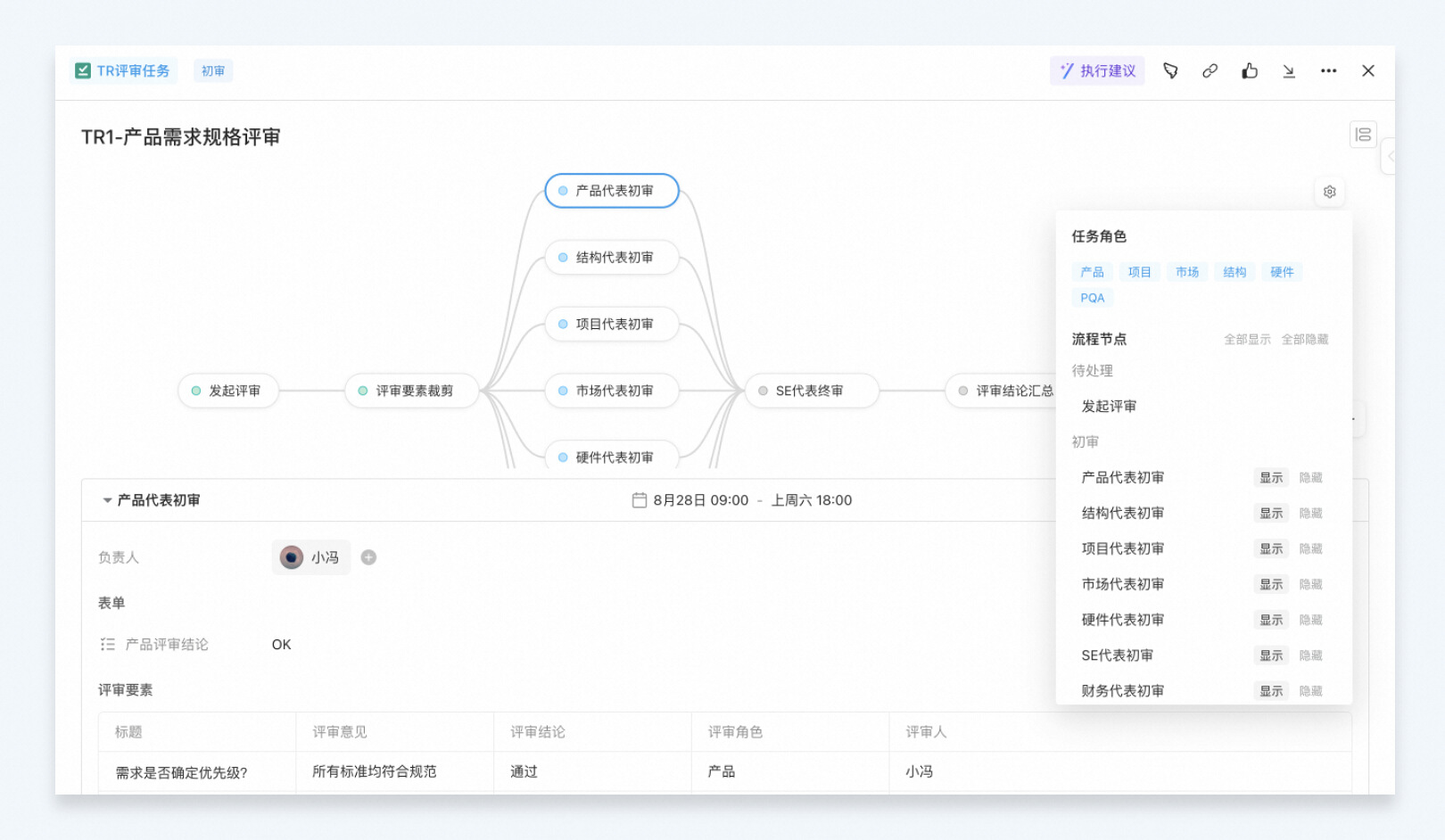

Node Role Assignment
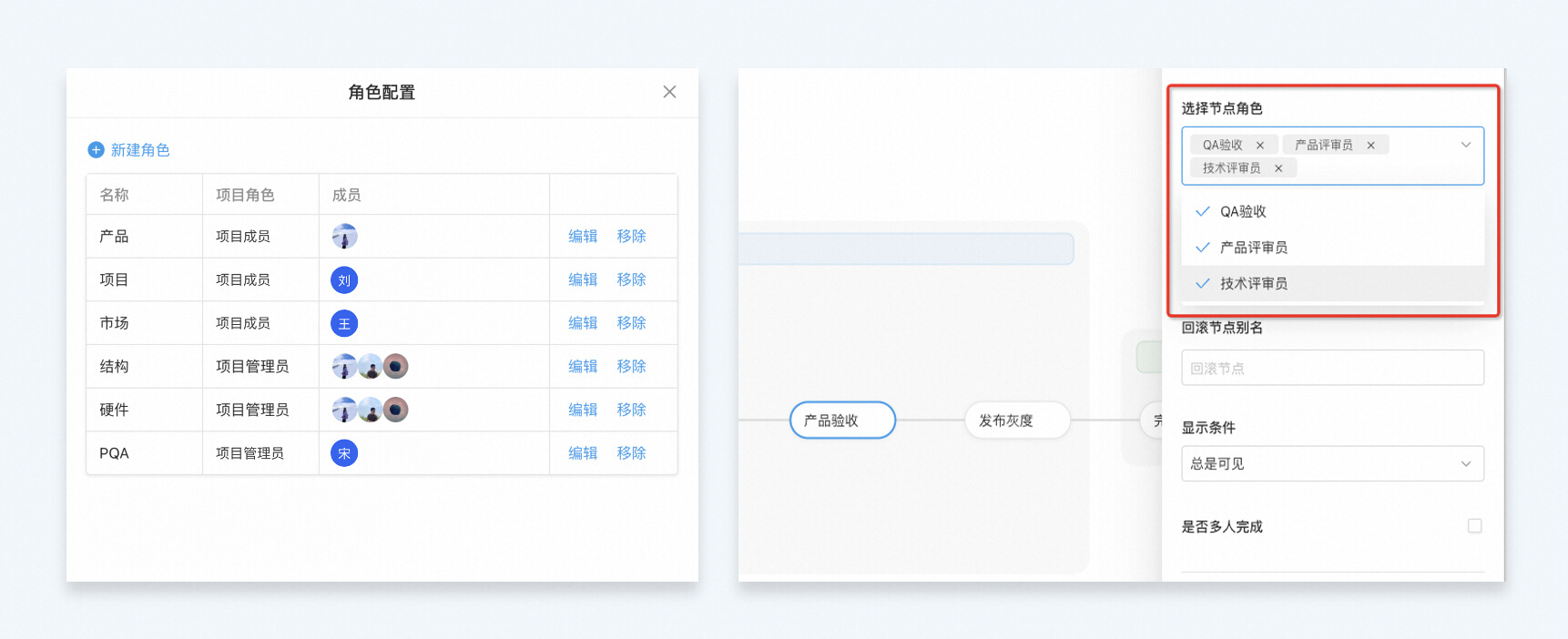
When a series of node activities involves multiple roles participating in a task, you can set default members for each node role. When the task workflow transitions, the system automatically assigns members under each role as the node leaders. Additionally, when creating a task, you can adjust the members assigned to task roles to better match the actual needs.
Node Subtask Templates
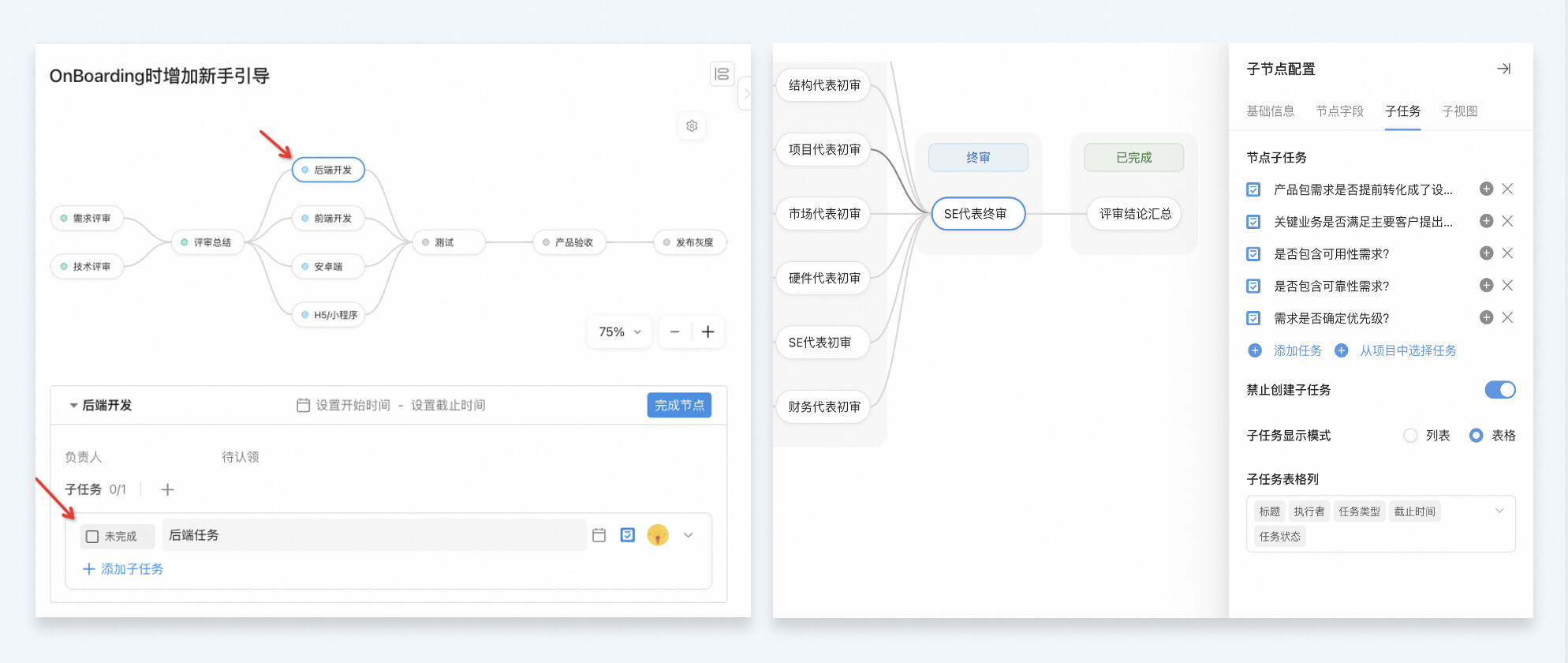
Tasks sometimes need to be broken down into multiple subtasks for work decomposition. During node orchestration, you can pre-populate subtasks in the node form, and when the task workflow transitions to that node, the system will automatically create subtasks in bulk. If your subtasks require filling out many fields, you can also create subtask templates in advance in the project and directly copy the project's subtask template during node configuration for quick addition.
Node Task Views
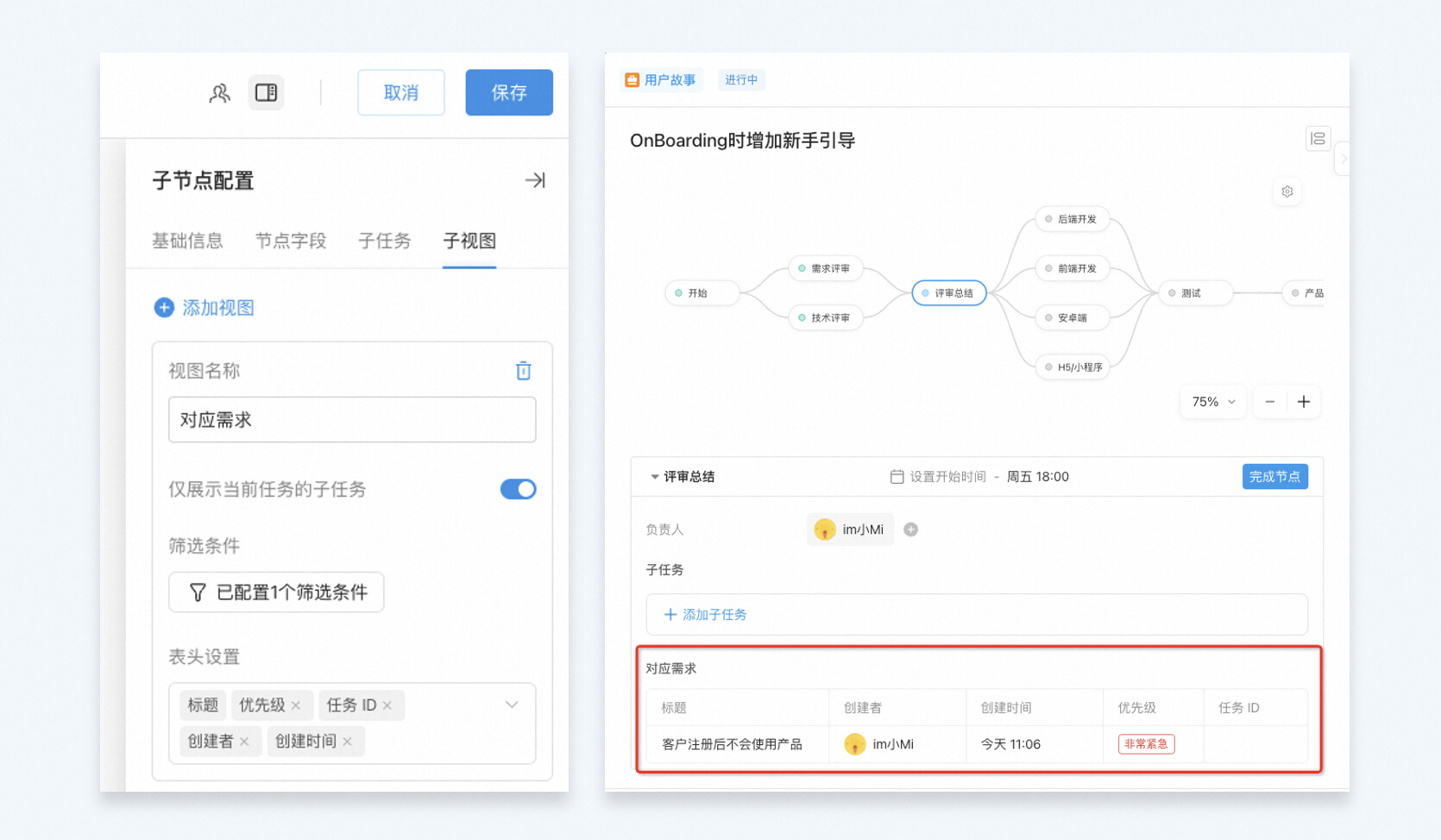
In cases where a task is associated with a large amount of content, you can use table views to filter and display a specific range of tasks in the node form. You can add views in the node's view configuration—for example, list corresponding customer feedback in a requirement to help determine its importance.
Experience Teambition's node workflow today—capture repetitive methods for getting things done and help your team do things better!
DomTech is DingTalk's officially designated service provider in Macau, specializing in providing DingTalk services to a wide range of customers. If you'd like to learn more about DingTalk platform applications, feel free to contact our online customer service or reach us by phone at +852 95970612 or by email at [email protected]. We have an excellent development and operations team with extensive market service experience, ready to provide you with professional DingTalk solutions and services!